
Deleting Windows Prefetch Files Does Not Make Your PC Faster

Deleting files from the Windows Prefetch folder does not improve PC performance and may cause applications to open more slowly. In 2005, MS developer Ryan Myers explained that Windows XP used Prefetch data to accelerate application loading. Clearing the folder forced Windows to rebuild that data, temporarily reducing performance. Two decades later, Windows 11 still uses Prefetch, yet deleting its contents remains a common recommendation in Windows cleanup guides.
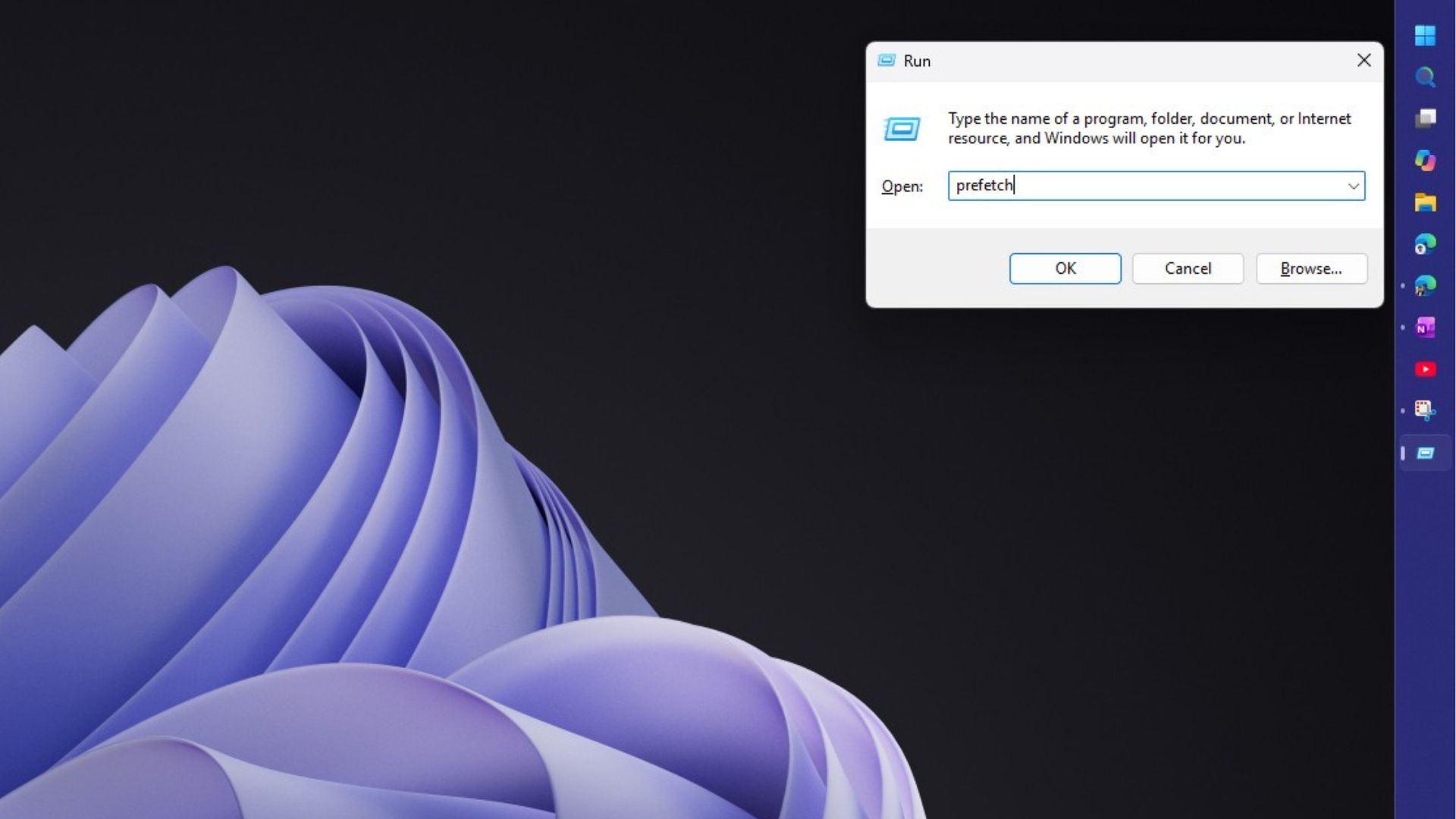
The process can feel productive: press Win + R, enter “prefetch,” select every file, and delete them. Seeing the folder emptied may create the impression that the PC has become cleaner or lighter. However, testing on Windows 11 shows that this assumption is misleading.
Windows Does Not Load Every Prefetch File Into RAM
Many cleanup guides incorrectly assume that every .pf file in the Prefetch folder is loaded into memory and slows down the system. In reality, Windows checks an application’s Prefetch file only when that application is launched. If an app has not been opened for months, its .pf file remains inactive and merely occupies a small amount of storage.
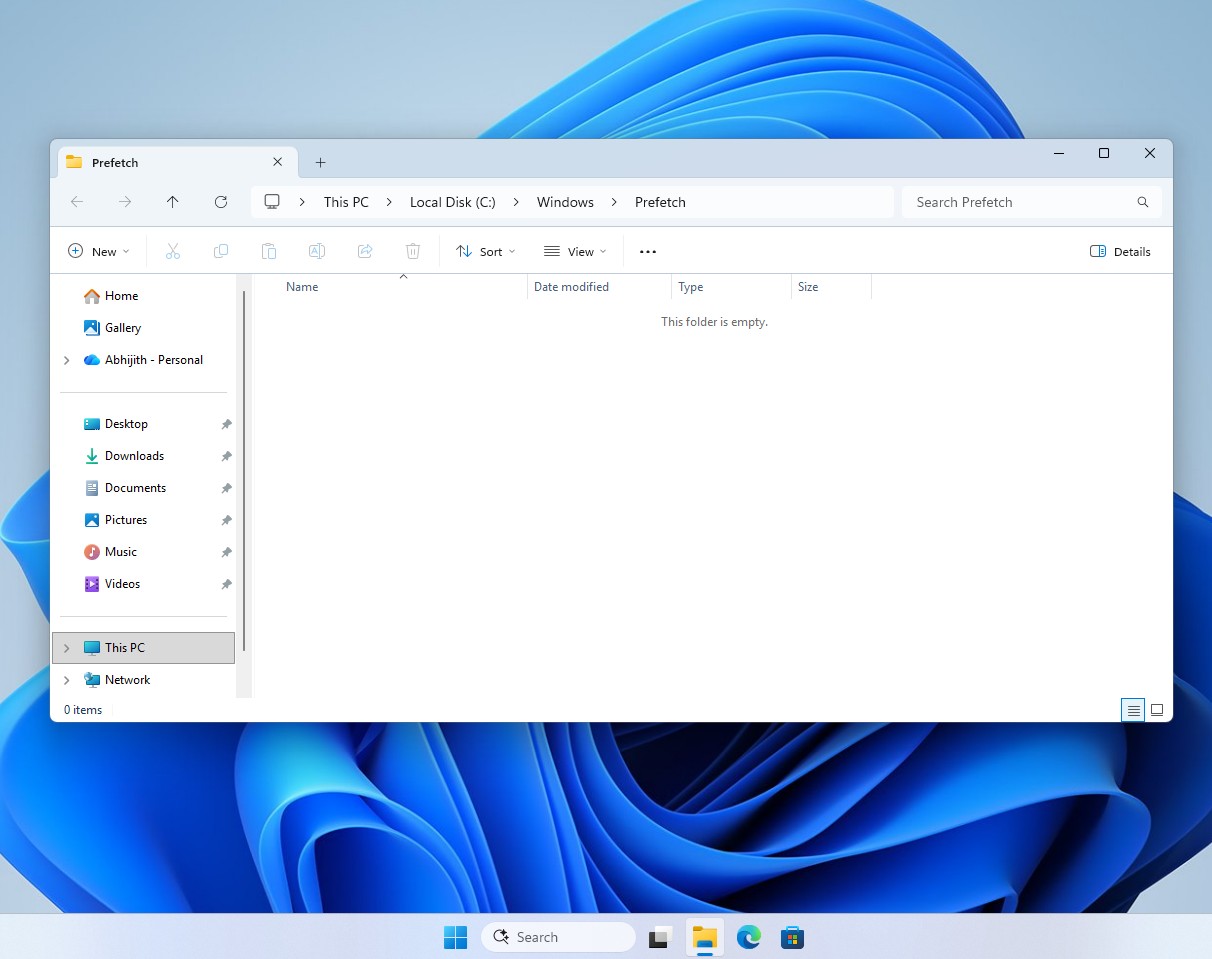
Prefetch files are not copies of installed applications. They contain lists of files and memory pages that Windows may need to read when launching a program. As a result, deleting them does not recover a meaningful amount of disk space.
Prefetch is also different from Superfetch, which is now called SysMain. SysMain loads frequently used applications into available RAM, and disabling it has different consequences from clearing the Prefetch folder.
Windows does not require users to manage Prefetch manually. The operating system already controls the folder and removes outdated entries when necessary.
Testing Whether Clearing Prefetch Slows Down Windows 11
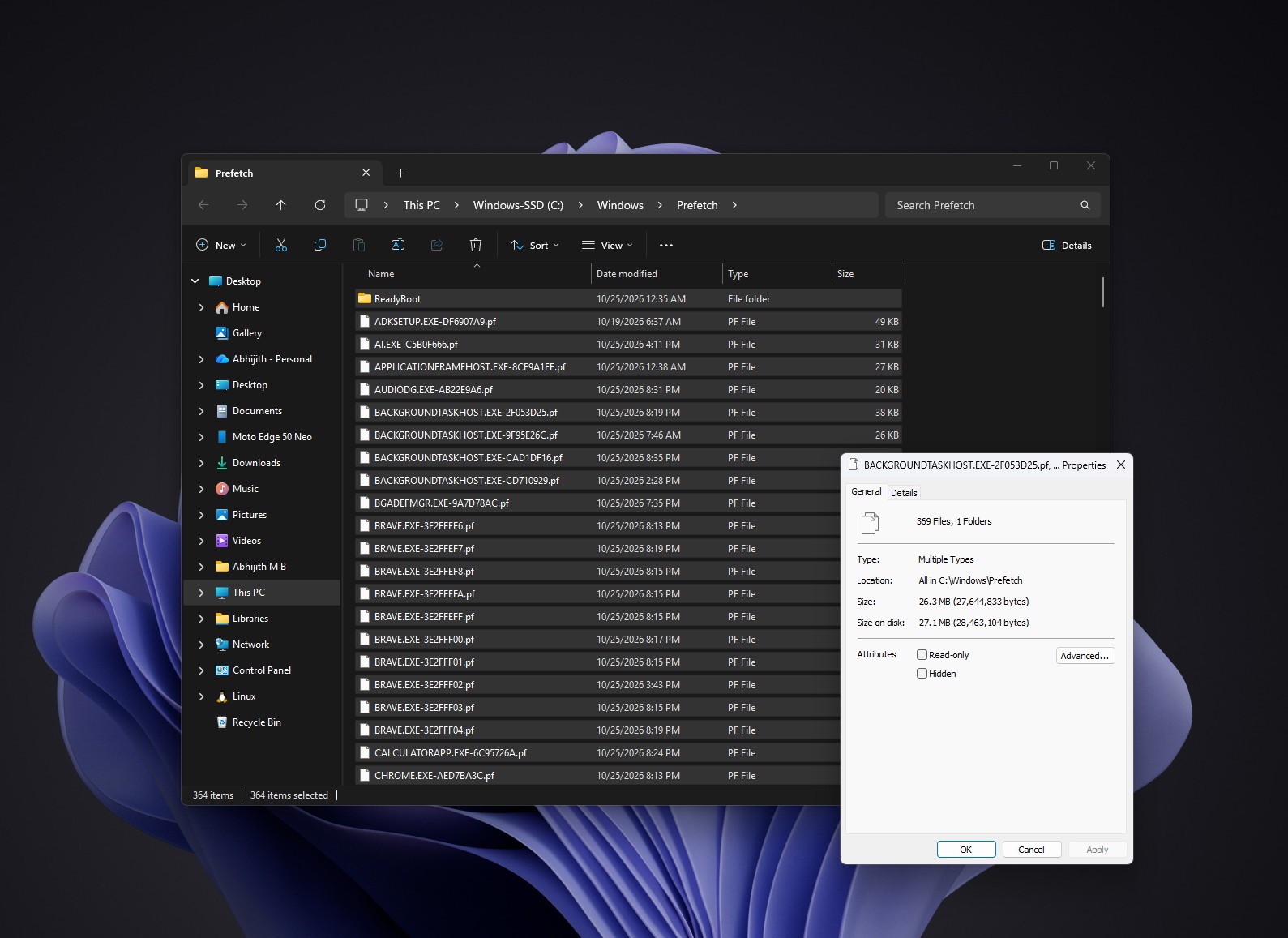
Unlike Windows XP, Windows 8 and later versions—including Windows 11—retain up to 1,024 Prefetch files and remove the oldest entries first, according to MS’s incident response team. On one regularly used PC, MS PC Manager had recently removed temporary files, leaving 364 items in the Prefetch folder. Together, the .pf files occupied approximately 27MB.
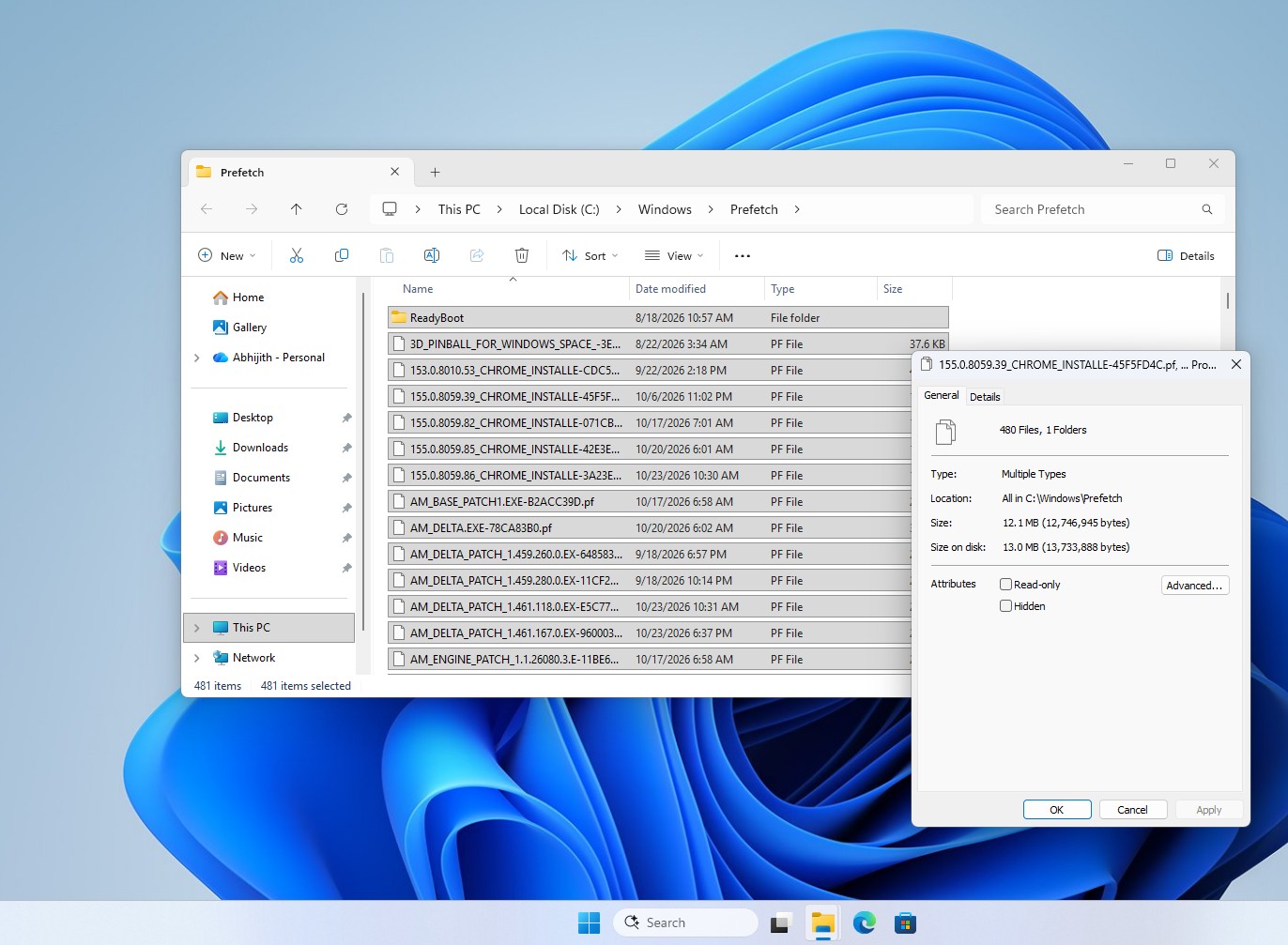
A separate test PC with relatively few installed applications had not been cleaned. Its Prefetch folder contained 481 items while consuming only 13MB of disk space.
Application launch times were compared before and after deleting the .pf files. On the primary PC, the differences were initially too small to measure reliably. After clearing the folder and restarting the system, however, applications that were already slow to launch showed a noticeable additional delay. Clipchamp, MS’s built-in video editor, was one example. Word, Edge, and Chrome experienced only minor delays.
The same test was then performed on a lower-powered virtual machine with 4GB of RAM and a dual-core processor. On that system, applications took noticeably longer to open after the Prefetch folder had been cleared, including the MS Store.
On a typical modern PC, deleting Prefetch files can therefore cause a small temporary slowdown in application launches. The difference may not be significant during everyday use, but clearing the folder does not produce a performance benefit.
Why Modern Hardware Makes the Difference Less Obvious
The performance gap is naturally smaller on modern SSDs than it was on hard drives from the Windows XP era. Contemporary processors are also substantially faster and more efficient. MS explained in 2009 that Prefetch and Superfetch were designed to improve performance on traditional hard disk drives, where random read speeds were a major bottleneck. Windows 7 even disabled application-launch prefetching on SSDs with sufficiently strong random-read performance.
A Windows 7 test conducted in 2013 found that the system required 61 seconds to boot without Prefetch, compared with 45 seconds when Prefetch was enabled. Word 2010 also took seven seconds to open instead of five.
Results have not always been identical. In a 2006 test, Steve Wiseman recorded a Windows XP MacBook booting in 37 seconds after Prefetch was cleared, compared with 52 seconds beforehand. However, a Prefetch registry setting was also changed during the test, and the tester acknowledged that application launches became slower.
Windows 11 Still Uses Prefetch for Application Launches
MS’s incident response team describes Prefetch as a feature designed to accelerate subsequent application launches. It is enabled by default on Windows desktop operating systems, although it is not enabled by default on Windows Server.
MS’s official recommendations for improving Windows performance do not advise users to clear Prefetch. Instead, they focus on practical measures such as:
- Disabling unnecessary startup applications
- Uninstalling applications that are no longer used
- Running Storage Sense or Disk Cleanup
- Installing available Windows updates
Startup applications are among the most common causes of poor performance on Windows PCs. They generally deserve more attention than the small files stored in the Prefetch folder.
When Clearing Prefetch May Be Reasonable
There are legitimate privacy-related reasons to remove Prefetch data. Each .pf file records how many times an application has run and can retain up to eight recent launch times. Users who are uncomfortable with that information being stored may delete the files, provided they understand the trade-off.
Clearing Prefetch for privacy is different from clearing it for performance. Deleting the files may sacrifice a small amount of application launch speed, but it will not make the computer faster.
If a PC feels slow, the more likely cause is an unnecessary startup application or a process consuming excessive CPU resources in Task Manager. Prefetch is intended to support performance, so in most cases, it is best to let Windows manage the folder automatically.