Windows 11 File Explorer Adds a New Use for the Tilde Key

A forthcoming Windows 11 update will allow the tilde (~) key to serve as a shortcut for opening locations such as the user profile, Documents, Downloads, and the AppData folder. Instead of entering the full path C:\Users\username\AppData in File Explorer, users will be able to type ~\AppData.
The feature is currently being tested in preview builds and is expected to become available more broadly within the next few weeks. It is also one of several improvements coming to File Explorer.
Using the tilde symbol to navigate directly to folders should be particularly useful because many users do not know the exact name Windows assigned to their user folder.
Why the Shortcut Is Useful
A Windows account’s display name does not always match its folder name under C:\Users. By default, Windows may create the folder using the first five characters of the associated MS account email address.
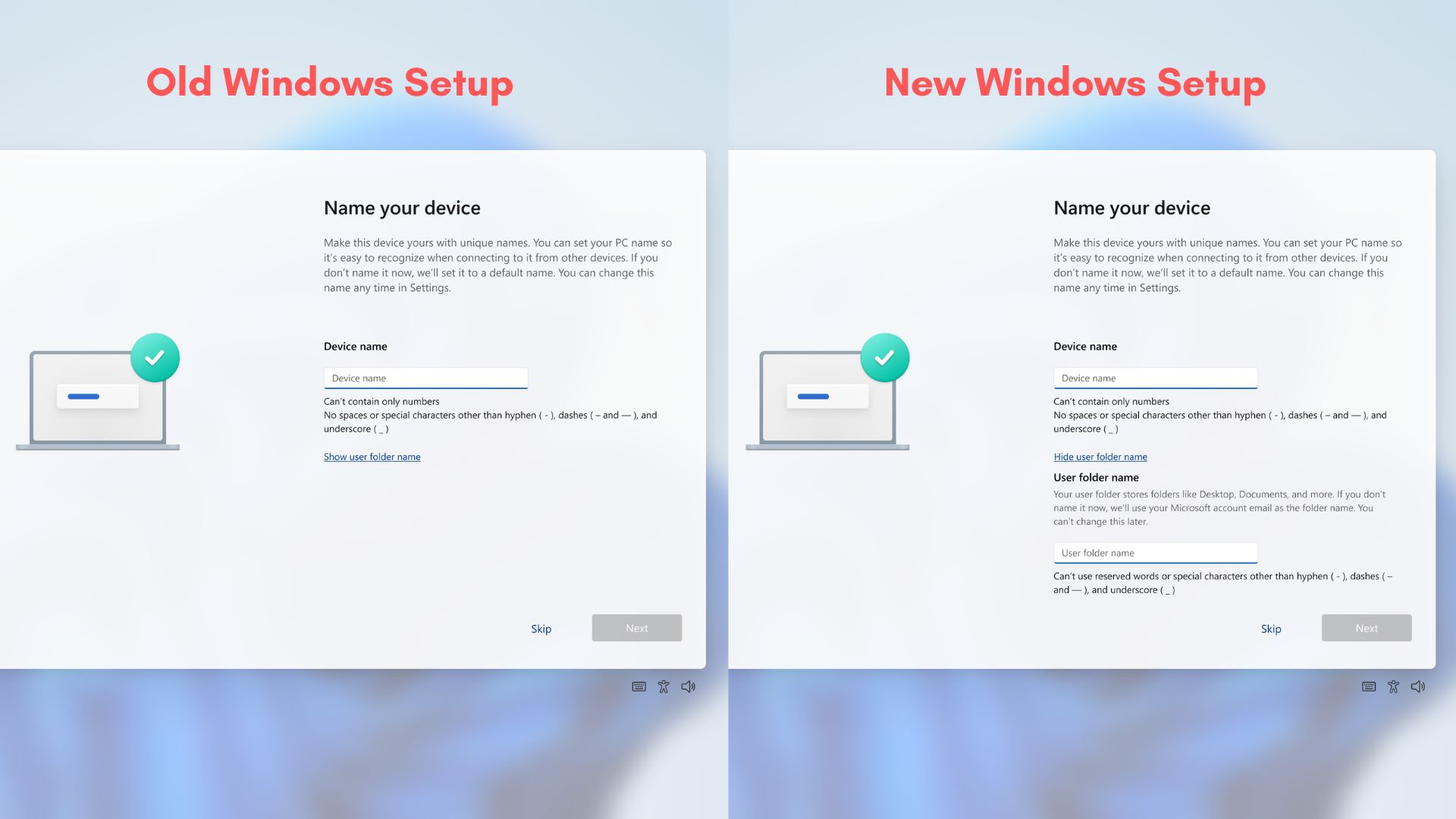
For example, if an email address begins with “michael,” the user folder could be named C:\Users\micha, even when the account’s display name is Michael.
A user might therefore attempt to open C:\Users\Michael\AppData without realizing that Windows created a different folder name. With the new shortcut, entering ~\AppData will open the correct location directly.
Additional File Explorer Improvements
Consistent Folder Preferences
Folder customization currently may not remain consistent across different interfaces. For example, the Downloads folder might be configured in File Explorer to sort files by size, while the same folder accessed through Chrome’s upload dialog could still use the default sorting order. The reverse can also occur.
MS is rolling out a change that enables File Explorer to remember sorting options and icon-size preferences across these different methods of accessing a folder.
Support for Quoted Folder Paths
Another improvement allows both C:\Users\user and "C:\Users\user" to work in the File Explorer address bar. Users will no longer need to remove quotation marks from a copied folder path before opening it.
Modern Dialogs and Expanded Dark Mode
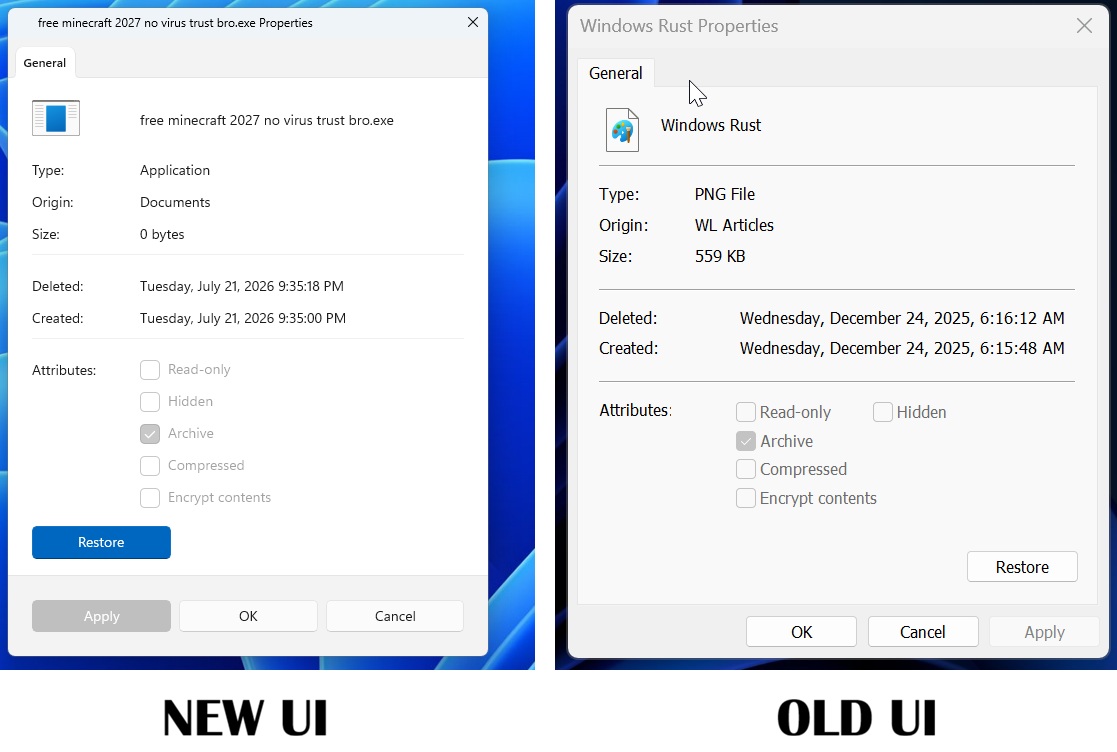
File Explorer is also receiving modernized Properties dialogs and dark mode support. Dark mode is expected to expand to additional dialogs as development continues.
Faster and More Consistent File Explorer Search
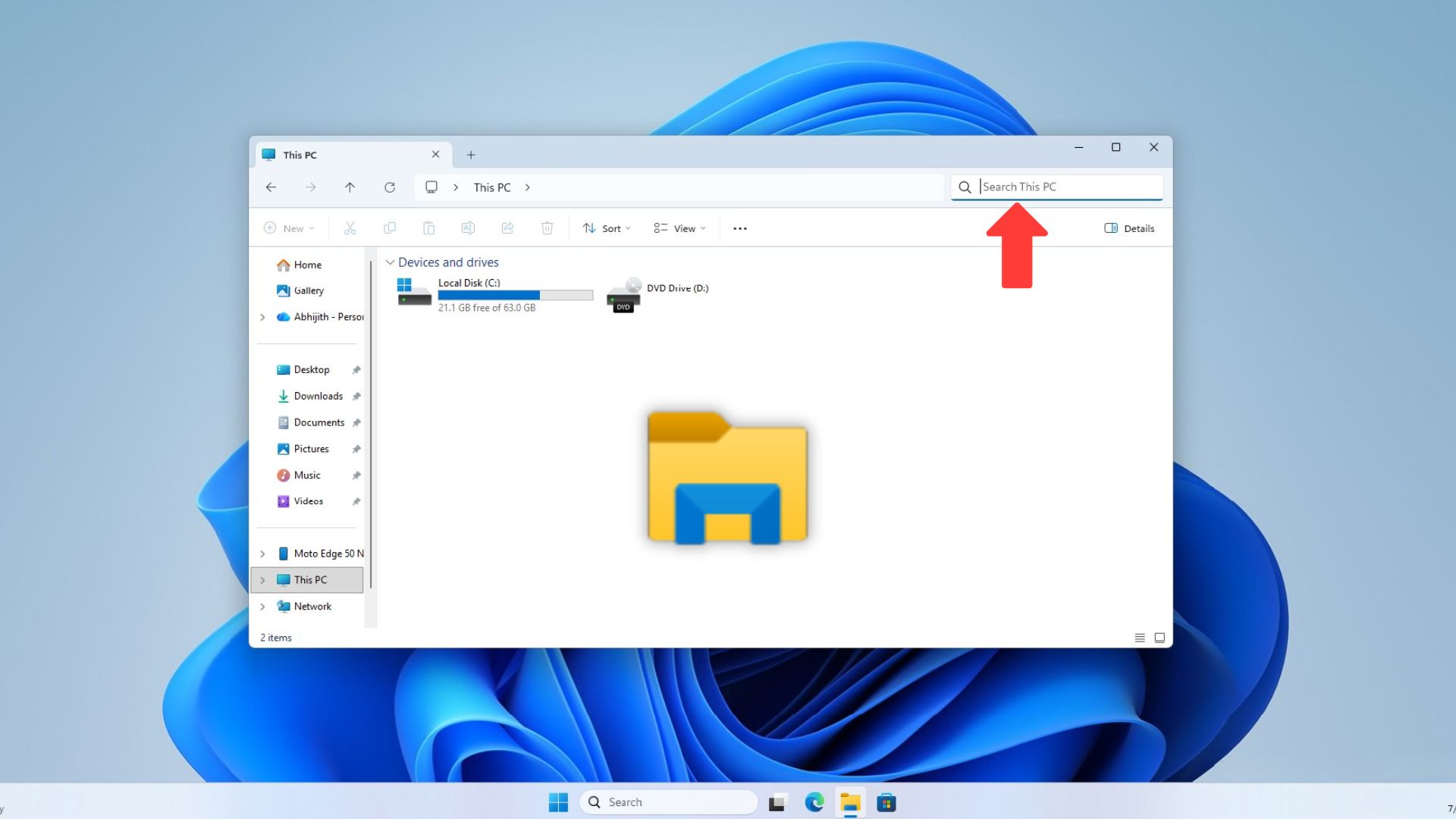
Searching for files or folders from “Home” and “This PC” in File Explorer has previously produced two different experiences. In Windows 11 preview builds, however, search from “This PC” now operates more like search from Home.
MS confirmed the intentional change in its release notes: “Search from This PC in File Explorer is now indexer-based, making it much faster and consistent with search from File Explorer Home.”
How the Search Index Works
This does not mean that “This PC” previously used a completely separate search index. File Explorer already relied on the Windows Search index, but “This PC” used a broader search method that could also examine non-indexed locations.
Windows includes an indexer that records file and folder names in known locations, including Documents and the Desktop. Similar to a search engine, it allows Windows to find items without scanning every folder during each search.
The broader “This PC” method has been described as a slow but in-depth search. Although slower, it can be helpful when looking for files that would not ordinarily appear in Windows Search results.
Major Search Performance Gains
Previous comparisons demonstrated how slow “This PC” search could be. In one test, a recently opened image named “Secure Boot” was searched for simultaneously through “This PC” and Windows Search. Windows Search found the image in approximately one second, while “This PC” still had not found it after eight minutes.
This performance issue has now been addressed and should also be available in production builds. Testing indicates that File Explorer can still search other drives for files outside the index, providing faster indexed results while retaining broader search coverage.
Further improvements are also planned to make File Explorer search smarter without relying on AI.