Copilot Brings Optional Local File Management to Windows 11
At Ignite 2026, MS confirmed that Copilot will soon be able to organize files stored on a PC, including content in the Downloads and Desktop folders. With permission, it can clean up storage, move files to a preferred volume, and rename multiple files according to their context. Similar workflows have already been possible through Claude Code on Windows, and MS is now bringing them to Copilot.
In March 2026, Windows chief Pavan Davuluri said MS would integrate AI only where it was most meaningful, with greater focus and care. The company subsequently began reducing Copilot’s presence in applications such as Photos and Snipping Tool, where the integration was considered less useful.
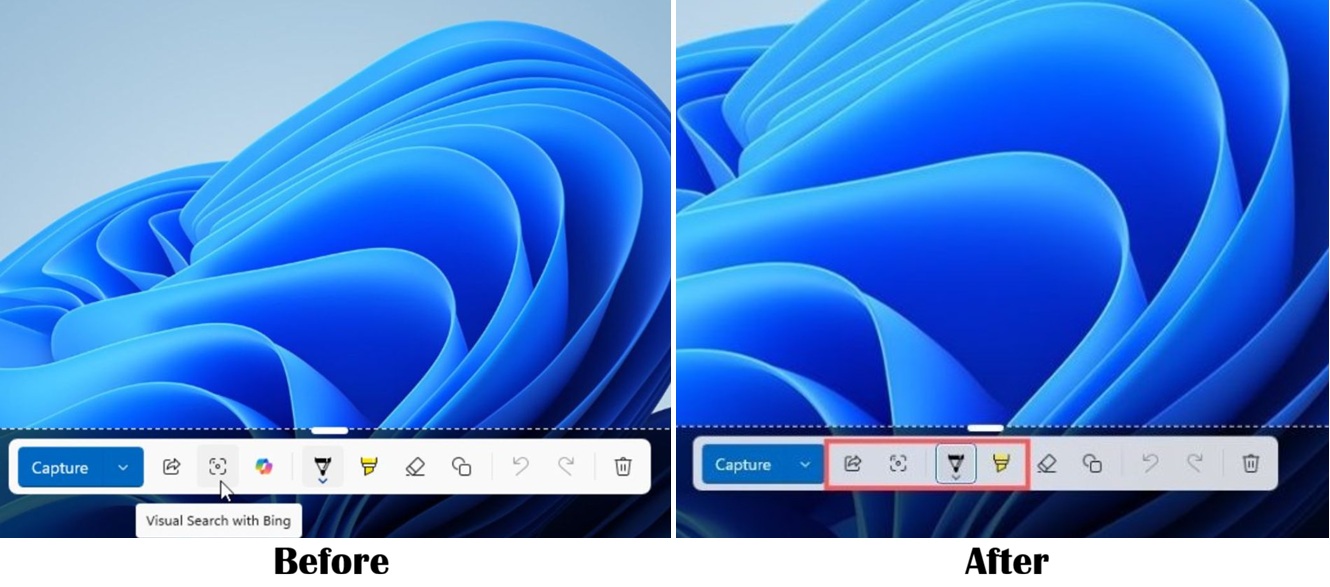
“You will see us be more intentional about how and where Copilot integrates across Windows, focusing on experiences that are genuinely useful and well-crafted,” Davuluri said.
MS also renamed Notepad’s Copilot button to Writing tools, although its AI-powered features remain available.

However, MS never indicated that it would stop adding AI capabilities to Windows 11, particularly when those features are optional. One of the most significant upcoming additions is local file management.
What Copilot’s Local File Actions Can Do
MS calls the feature local file actions. When enabled in the optional Copilot app, it allows users to issue natural-language instructions for managing files across their PCs.
- Move files between folders and storage locations.
- Rename files based on their contents, provided Copilot is allowed to read them.
- Create folders and organize related files.
- Find files by analyzing their contents rather than relying only on filenames.
MS argues that Copilot can reduce the time users spend manually organizing personal or workplace storage. The company cited employees as an example, suggesting they could focus on more important work while Copilot handles routine file organization.
How Copilot Reads Local Files With Permission
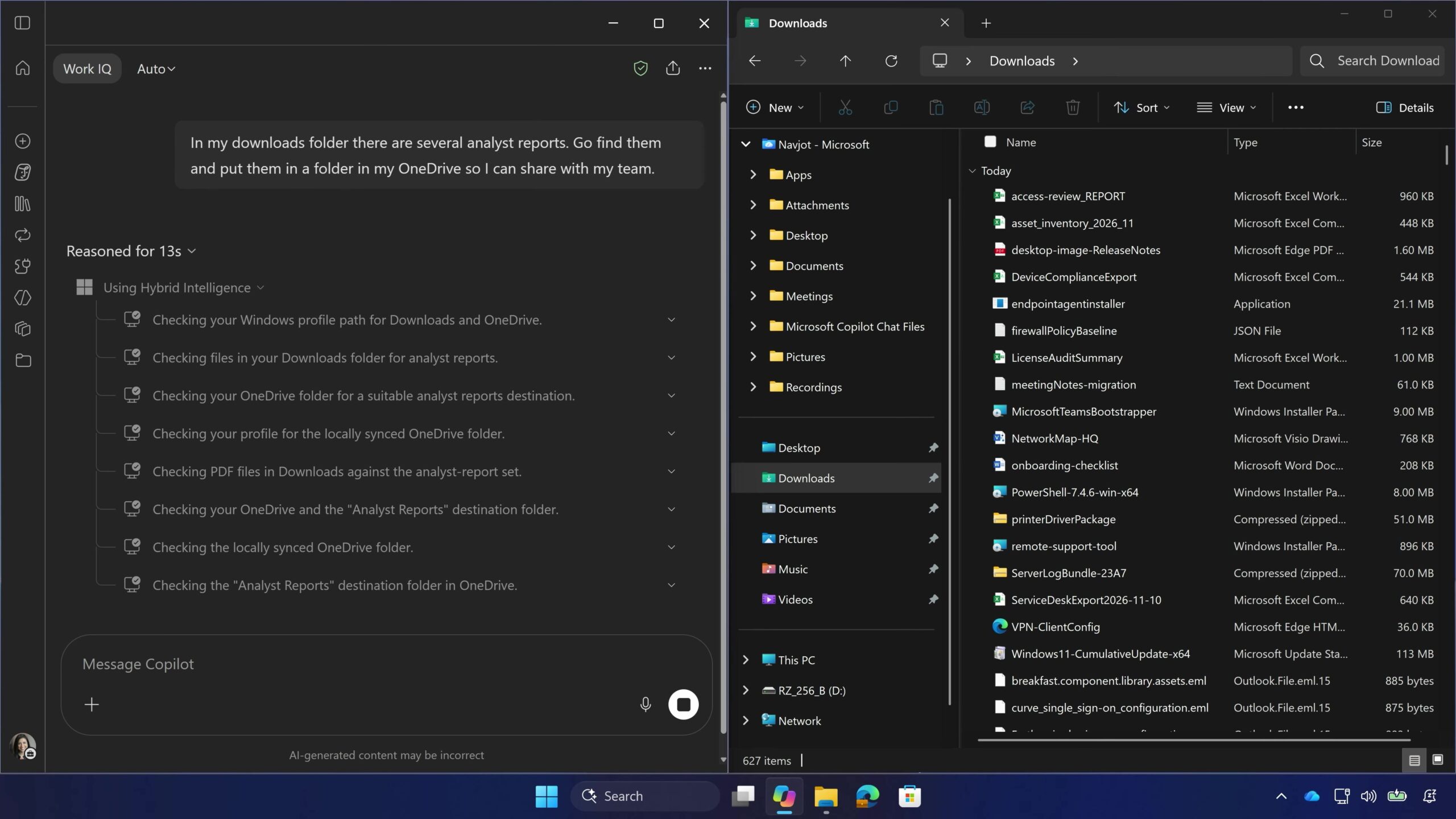
A user can open the Copilot app and enter a prompt explaining that several analyst reports are stored in the Downloads folder and should be placed in a OneDrive folder for sharing with a team.
Because OneDrive is integrated into Windows and has a dedicated section in File Explorer, the underlying copying process is relatively straightforward, and Copilot can complete it effectively.
Before proceeding, Copilot requests permission, checks applicable policies for safeguards, and displays a message stating that it is Using Hybrid Intelligence. MS has increasingly used this term, including in comments from Satya Nadella, who said hybrid intelligence would reach every desk through RTX Spark and other Copilot+ PCs.
Copilot then scans the Downloads and OneDrive folders, searches for analyst reports, identifies the locally synchronized OneDrive location, and prepares to save the files there.
Session-Based Access and Privacy Controls
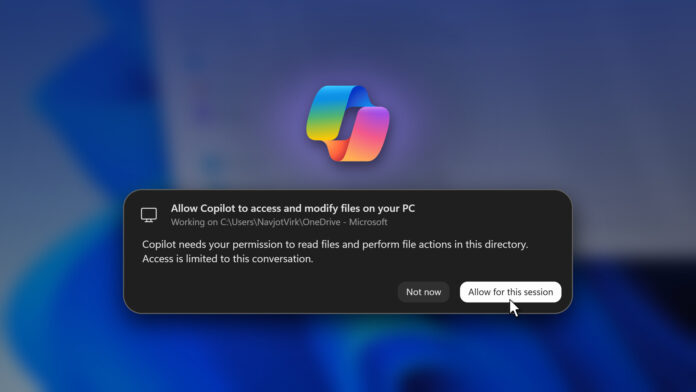
Copilot must access local files to complete this type of task. However, that access is not granted automatically. The user is prompted multiple times before the AI can read or modify local storage.
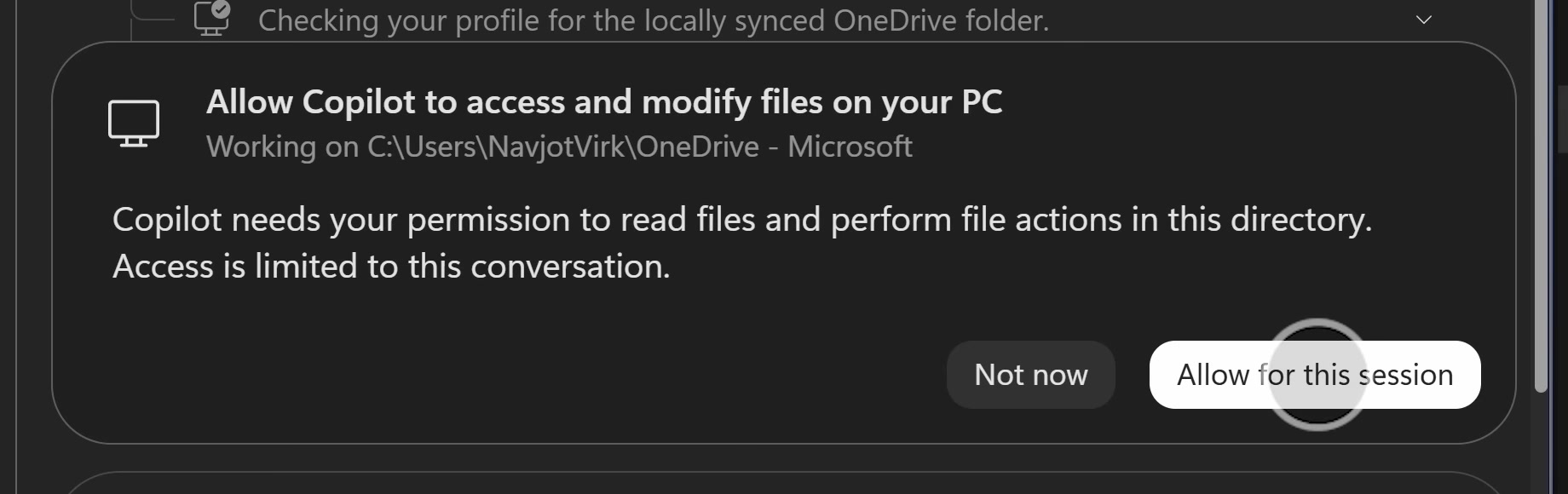
The permission dialog clearly identifies the access Copilot requires to perform the requested operation.
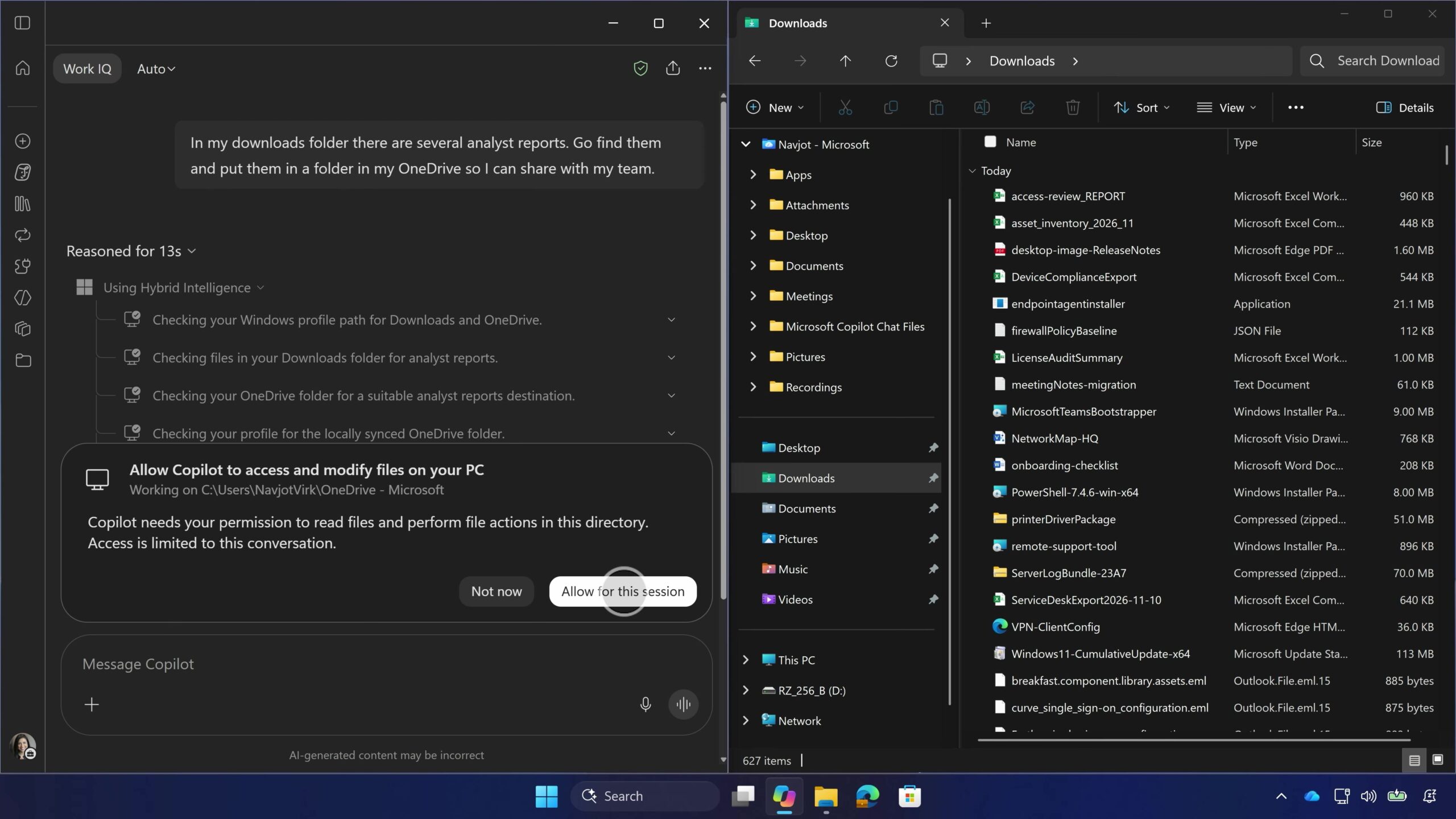
Users are given two choices: Not now and Allow for this session. There is no “Always allow” option, which limits persistent access. Even if permission is granted accidentally, Copilot does not receive unrestricted access to every folder and path on the PC. This approach shows that MS is applying additional safeguards to local storage access.
Moving and Identifying Files
After receiving permission, Copilot creates an Analyst Reports folder in OneDrive and moves the files individually. It displays each action as it happens, including messages such as “Moving ‘AU_DaaS_Model_Oct26.pdf’ to ‘Analyst Reports’.”
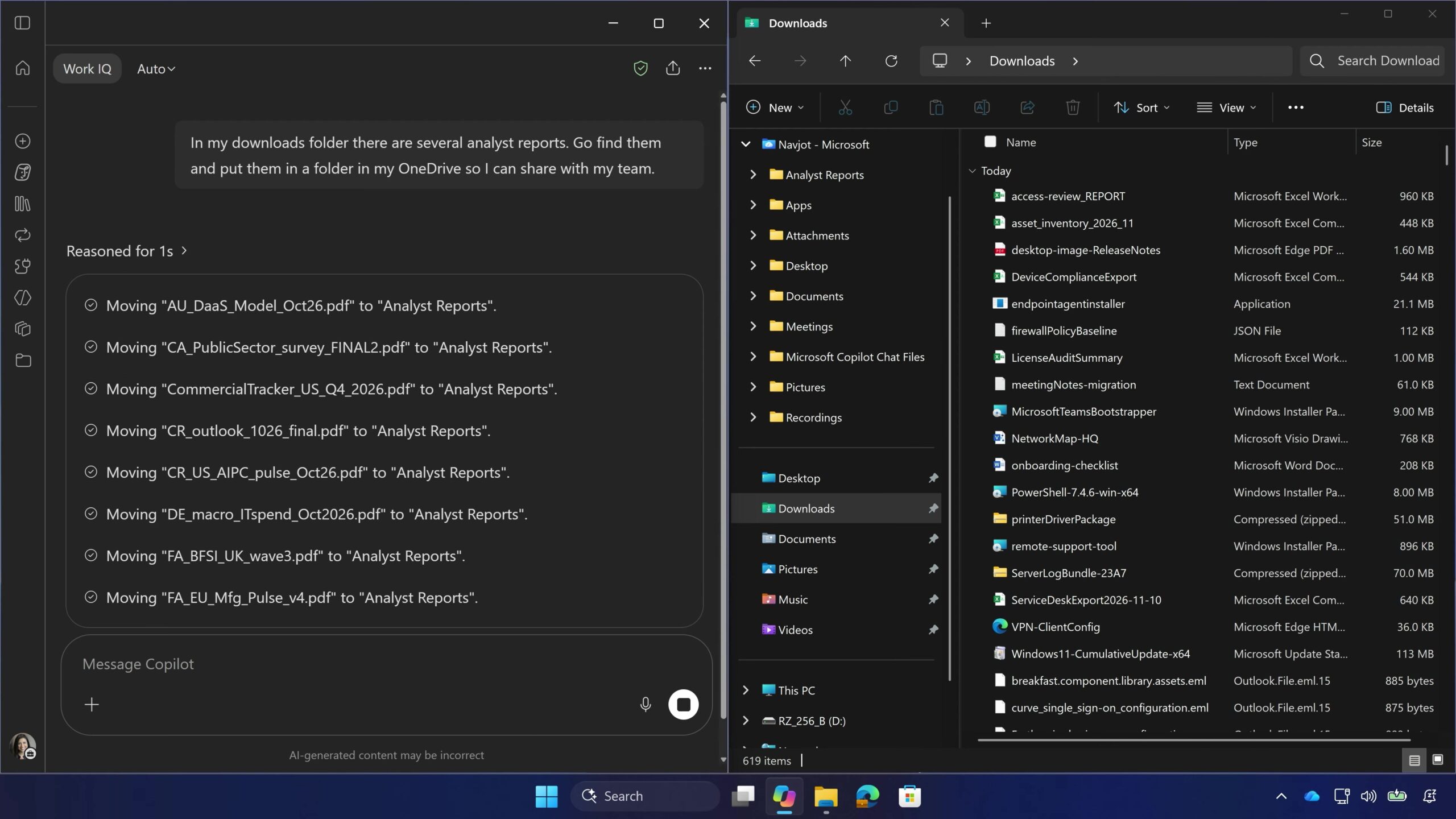
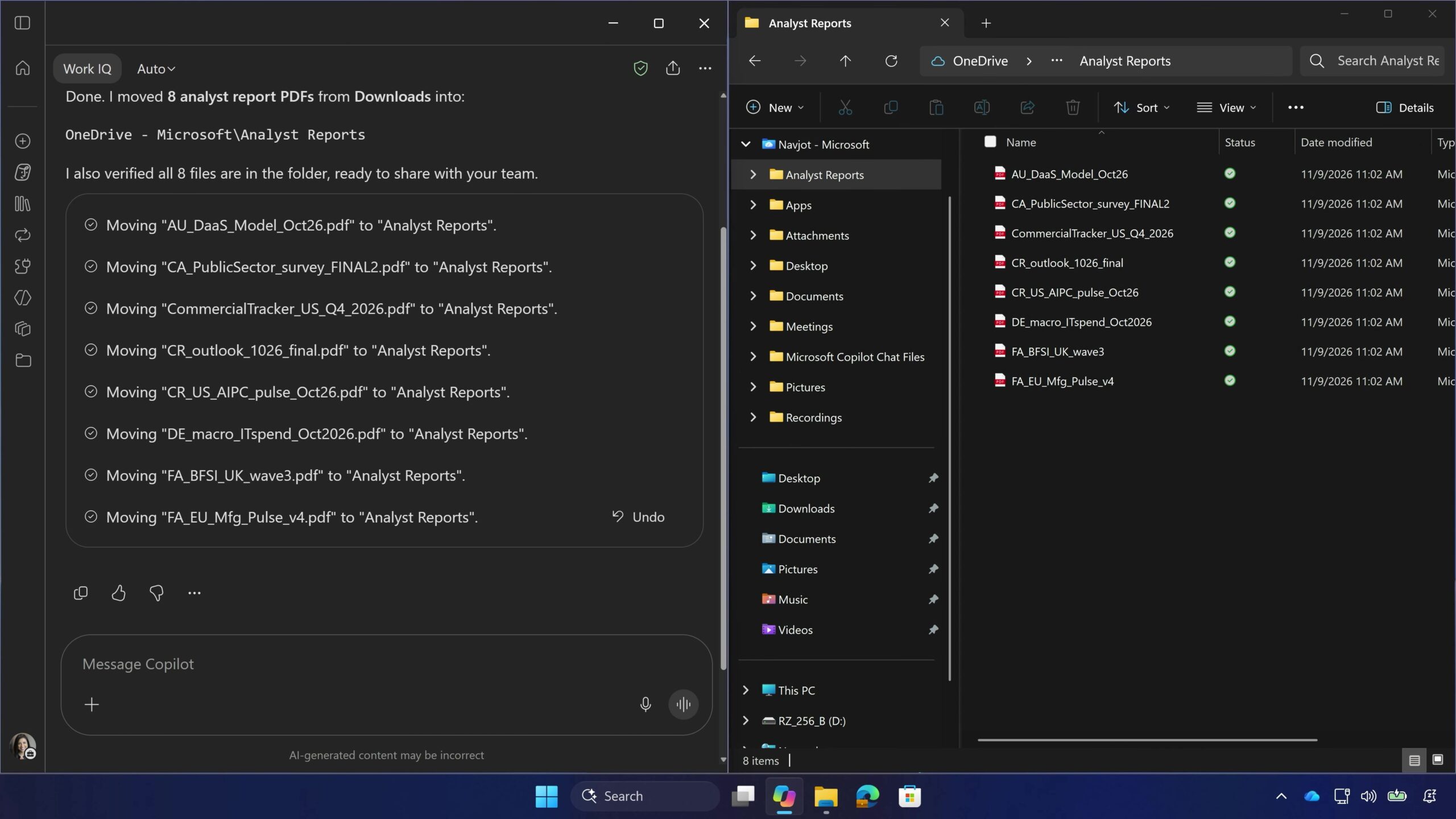
An Undo button appears beside the list of completed moves. File Explorer then displays the newly created folder containing all eight PDF files.
None of the eight filenames explicitly includes the phrase “analyst report.” Copilot identified documents such as “CR_outlook_1026_final.pdf” and “FA_BFSI_UK_wave3.pdf” by reading their contents. This content analysis likely explains why the system requested permission more than once.
An Optional Feature With Additional PC Tools
Because local file access is optional and restricted to the Copilot app, users can decide whether to enable it. Those who do not want Copilot can remove the application, and it should not return unless an unexpected bug causes it to reappear.
MS has also confirmed that Copilot will be able to troubleshoot PCs. Separately, the company has developed a PC optimization tool called PC Assist, which promotes Bing.