
Losing a work laptop creates a difficult choice for IT teams: hope no one can bypass its password or remotely wipe the Windows 11 PC, even if the device may soon be recovered. MS is now testing a middle option called Remote Lock, which allows administrators to lock a missing or stolen Windows PC through Intune without deleting its files.
Remote Lock appeared in Windows 11 Insider Preview Build 29708.1001 for the Experimental (Future Platforms) channel on November 13. Once enabled, the lock cannot be removed with a Windows password, PIN, or local administrator account. Only IT administrators can unlock the device. The feature remains in an early preview.
Windows 11 Remote Lock Signs Out Users Without Erasing Data
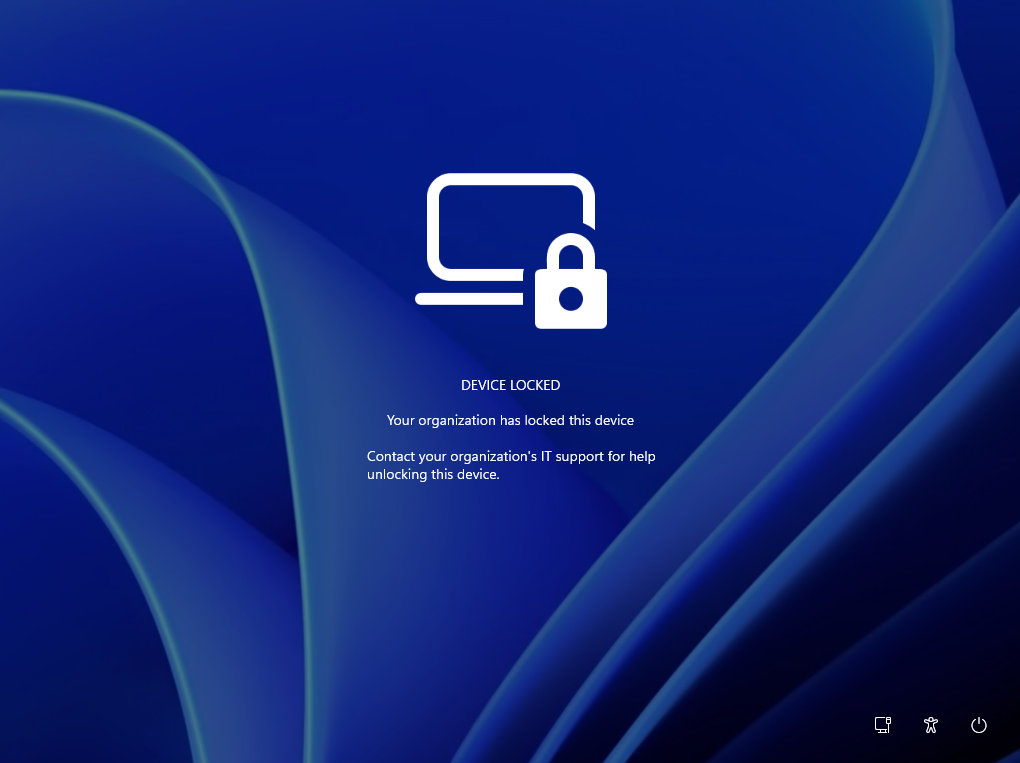
When IT applies Remote Lock, Windows closes all active sessions, hides sign-in options, and displays a Device Locked screen. No data is erased: the PC remains enrolled in and managed through Intune, BitLocker stays enabled, and files remain in place.
Restarting the computer or disconnecting it from the internet does not disable Remote Lock, helping prevent users or unauthorized parties from bypassing the restriction.
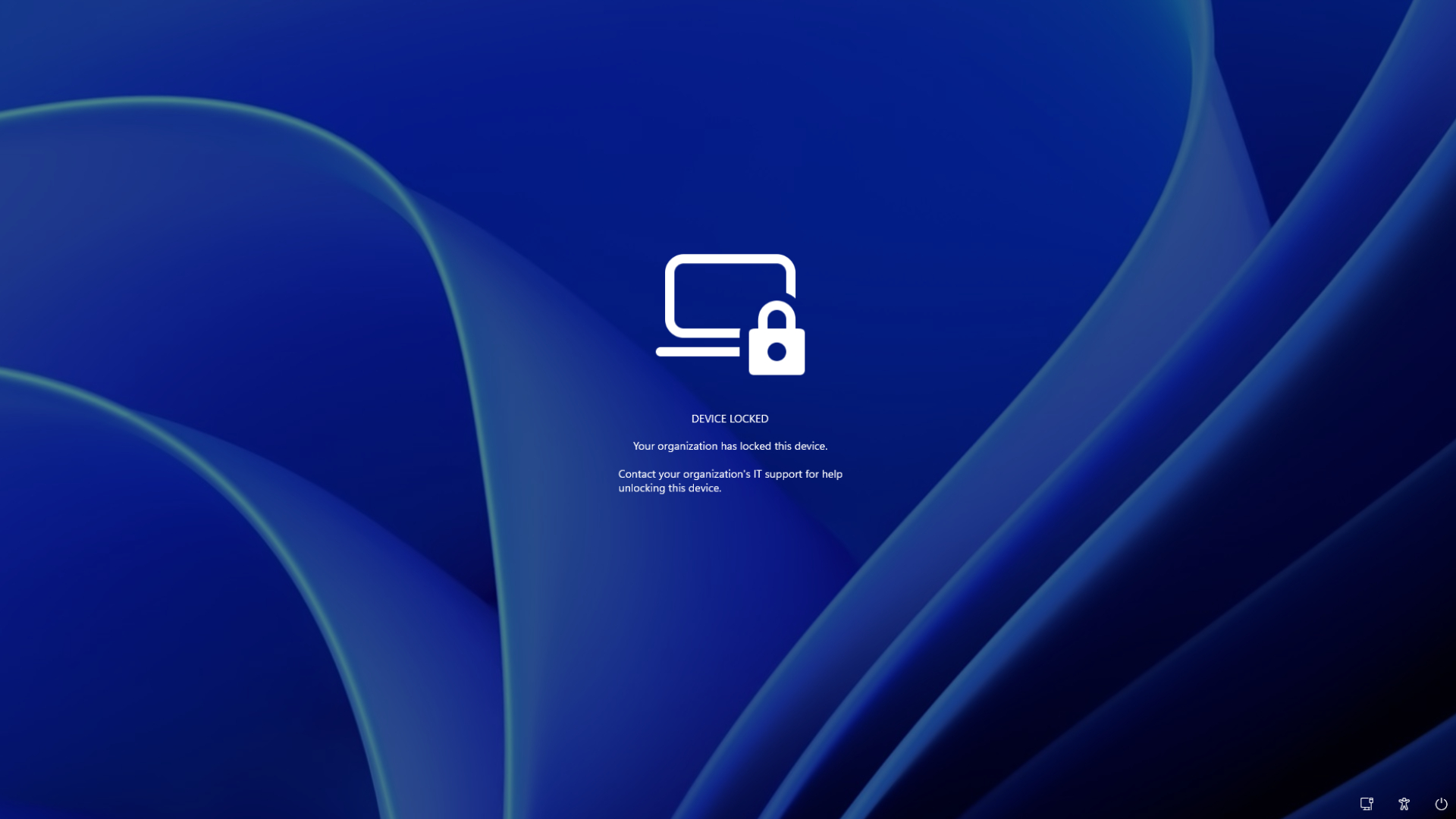
By default, the screen states, “Your organization has locked this device”, and instructs the user to contact IT support. Administrators can provide a custom explanation through LockReason and add help-desk information with RecoveryHint.
The user’s account itself is not affected, and its credentials continue to work on other devices. If the account has been compromised, IT must separately disable it or revoke its active sessions through MS Entra ID.
Remote Lock was not initially part of MS’s stated plans. During a MS Intune event in March 2025, an administrator asked whether Windows would receive the feature. MS’s Joe Lurie said there were no plans at the time to implement Remote Lock on Windows devices, while another employee indicated that it was not a high-priority backlog item. Approximately 20 months later, the capability has entered preview testing.
Remote Lock Currently Requires a Custom Intune Profile
Intune already includes a Remote Lock action, but it currently supports Android, iOS and iPadOS, macOS, and visionOS. MS also warns that on some supported platforms without a configured passcode, the action may only turn off the screen. The Windows implementation does not require the user’s password.
Eligible devices must be MS Entra joined, hybrid joined, or enrolled in mobile device management. They must also run Windows Pro, Enterprise, or Education. MS’s documentation mentions Windows 10 and Windows Server 2016, 2019, and 2022, although Remote Lock has so far only been announced for the preview build.
At present, IT administrators must create a custom profile in the Intune admin center by navigating to Devices > Windows > Configuration > Create > New policy. They must then select Windows 10 and later, followed by Templates > Custom, and configure the necessary OMA-URI settings.
A profile with LockState set to 1 is assigned to a device group reserved for locked systems. Adding a laptop to that group locks it during its next Intune check-in. To restore access, IT creates another profile with LockState set to 0, assigns it to an unlock group, and transfers the device to that group.
Although this process is relatively cumbersome, a read-only Status node allows administrators to verify the device’s current state:
- 0: Unlocked
- 1: Locked
- 2: Lock pending
- 3: Error
Remote Lock Does Not Replace BitLocker
The feature depends on Intune check-ins. If a laptop is already offline when IT issues the command, it will not lock until it reconnects and checks in. Unlocking must also be performed through Intune; a PIN, password, local administrator account, or web sign-in cannot remove the restriction.
Remote Lock does not isolate the computer from its network. It also does not prevent access to the Windows Recovery Environment or Safe Mode, nor does it stop someone from booting from a USB drive. An attacker could potentially remove the storage drive or reimage the laptop, which is why MS recommends keeping BitLocker enabled.
BitLocker has experienced problems on some PCs, including recovery loops associated with the Secure Boot certificate rollout. Nevertheless, its encryption remains essential because it prevents data on a missing device from being read.
Remote Lock ultimately gives IT teams a way to secure a missing Windows laptop without immediately wiping a device that may soon be recovered.