Windows 11’s Customizable Right-Click Menu Arrives with KB5127936
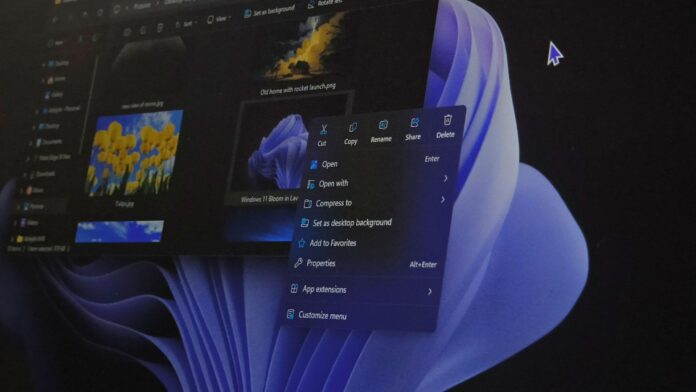
Windows 11’s redesigned right-click menu is rolling out with the October 2026 optional update, KB5127936. After installing the update on a primary PC, the new context menu opened instantly. It also provides control over which app extensions appear when right-clicking a file. Options such as Send to, Print, and the legacy context menu can be managed from a new Context menu page in Settings.
MS is deploying the feature gradually, so installing the update does not guarantee immediate access. If the redesigned menu is still unavailable, ViVeTool can be used to enable it manually.
How to Enable the New Windows 11 Right-Click Menu
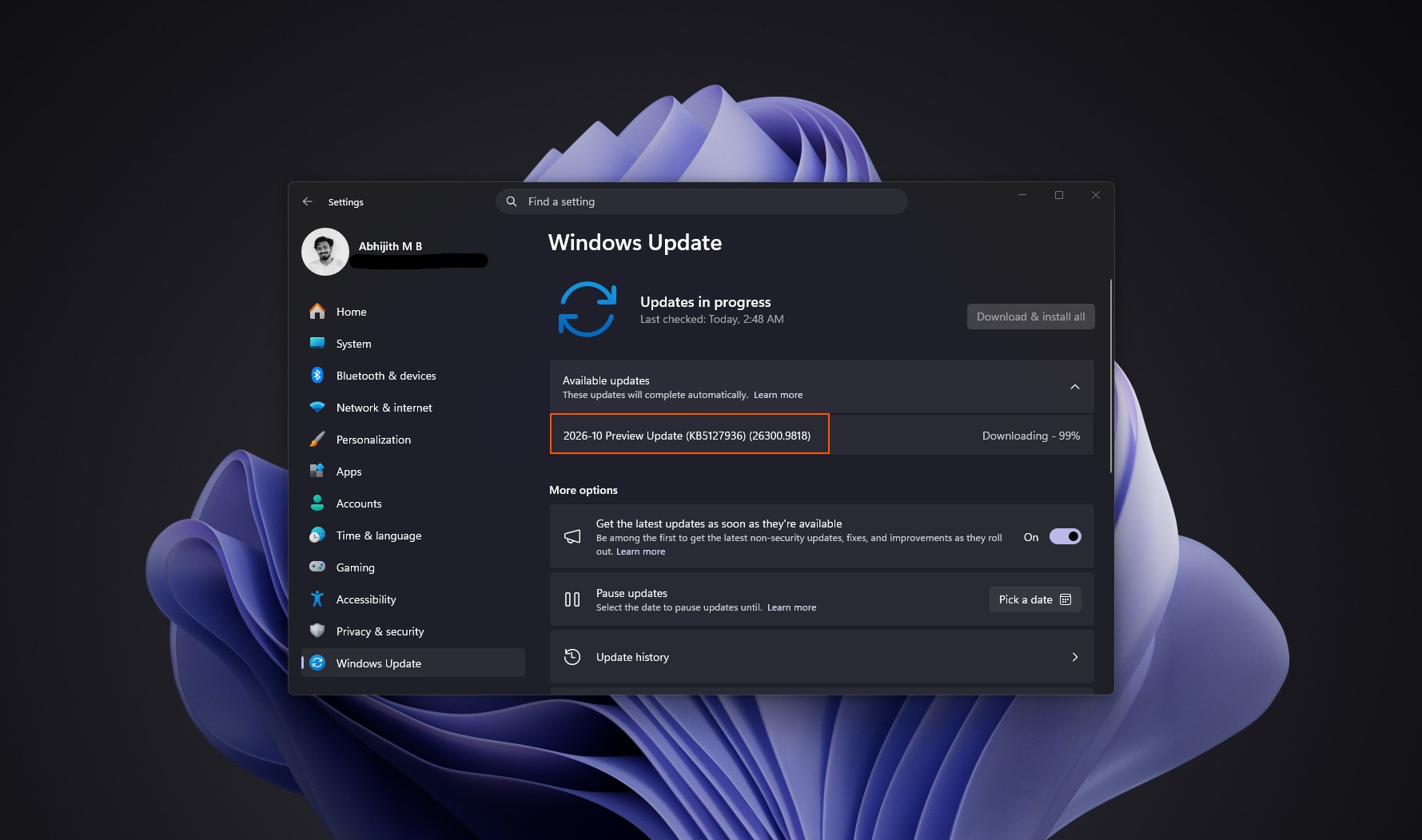
Install KB5127936
Open Settings > Windows Update, then select Check for updates. If KB5127936 is not listed, enable Get the latest updates as soon as they’re available and check again.
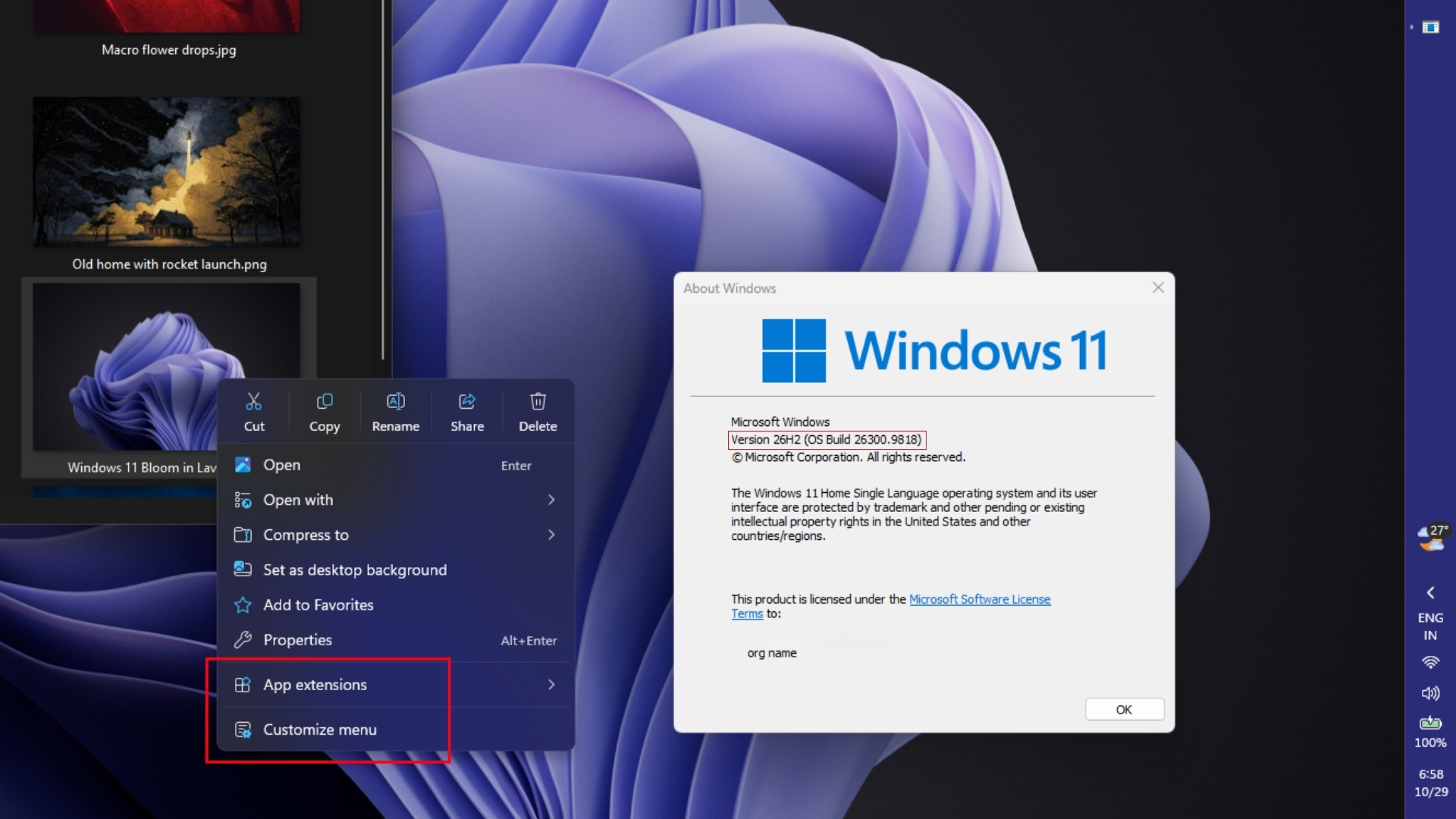
Install the 2026-10 Preview Update (KB5127936) and restart the PC. Run winver to confirm that Windows is on Build 26200.9818 or Build 26300.9818.
Check Whether the New Menu Is Already Available
Right-click any file in File Explorer. If Customize menu appears at the bottom, the feature is already enabled and ViVeTool is unnecessary. If the option is missing, continue with the following steps.
Download ViVeTool
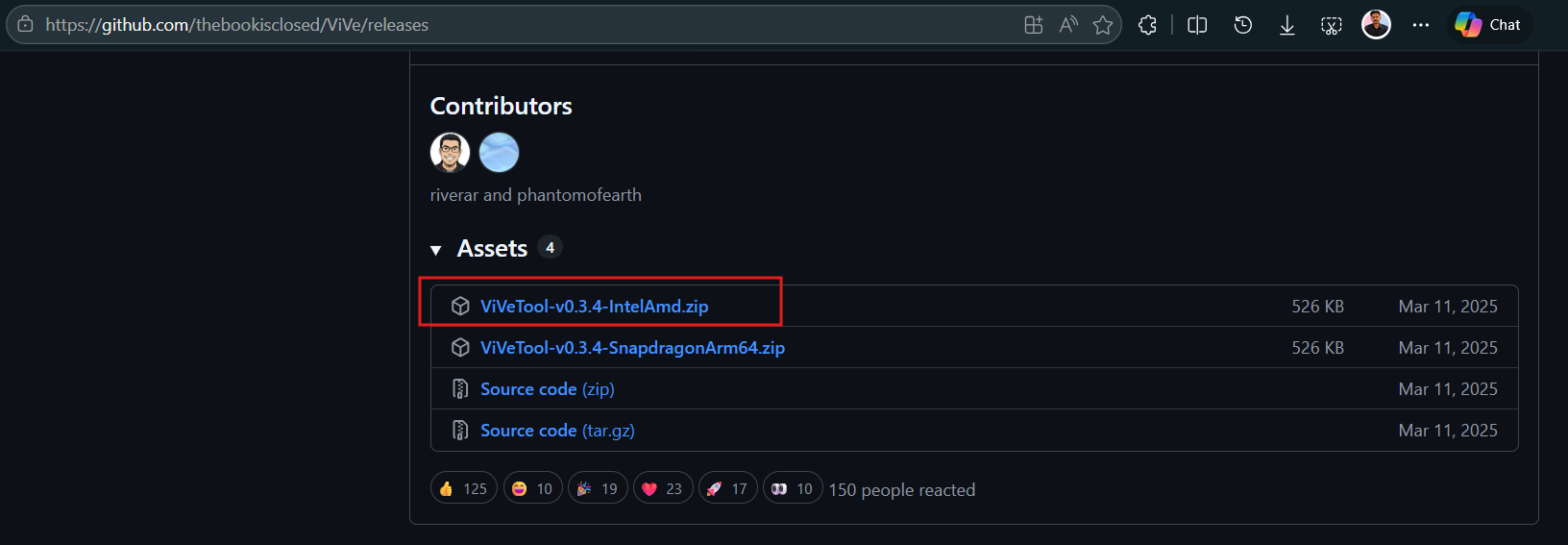
Download ViVeTool from its official GitHub page. Choose ViVeTool-v0.3.4-IntelAmd.zip for Intel or AMD PCs, or ViVeTool-v0.3.4-SnapdragonArm64.zip for Snapdragon PCs.
Extract the archive to a folder named ViVeTool on the C drive. The executable should be located at C:\ViVeTool\ViVeTool.exe.
Run the Required Commands
Right-click the Start button, open Terminal (Admin), and run the following commands in order:
cd C:\ViVeTool
vivetool /enable /id:60813048
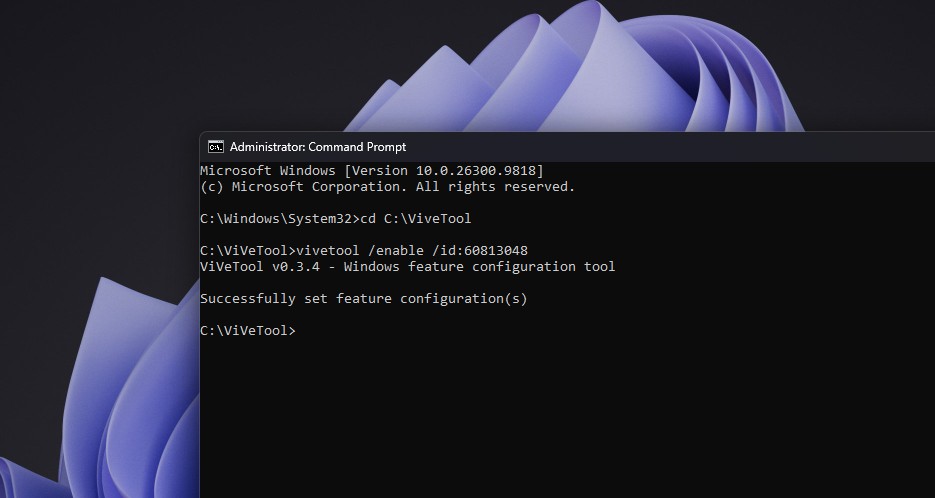
The terminal should display Successfully set feature configuration(s). Restart the PC, then right-click a file again.
Try Additional Feature IDs If Necessary
Some PCs require a second feature ID. Run the following command and restart Windows:
vivetool /enable /id:49453572,60813048
If the menu still does not appear, some builds may also require a third ID:
vivetool /enable /id:49453572,60813048,61934903
On the tested PC, feature ID 60813048 was sufficient. Feature ID 61456288 was also tested beforehand, but that ID is intended for the redesigned Temporary files page in Settings.
To reverse the change, run the relevant command again with /disable instead of /enable. ViVeTool activates features that MS has not yet rolled out to a specific PC, so it should be used at the user’s discretion.
The New Context Menu Is Rolling Out with KB5127936
MS released KB5127936 on October 28 for Windows 11 25H2, Build 26200.9818, and Windows 11 26H2, Build 26300.9818. According to the release notes, the redesigned menu opens more quickly, reduces clutter, and gives users greater control over the commands and app extensions displayed when they right-click.
In August, MS acknowledged that the Windows 11 context menu had become cluttered and sluggish. Extensions such as Ask Copilot and Edit with Clipchamp could load late, sometimes causing users to select the wrong item. An earlier attempt to address the problem added a Manage file submenu for less frequently used actions, but this only reduced the menu’s length by a few lines.
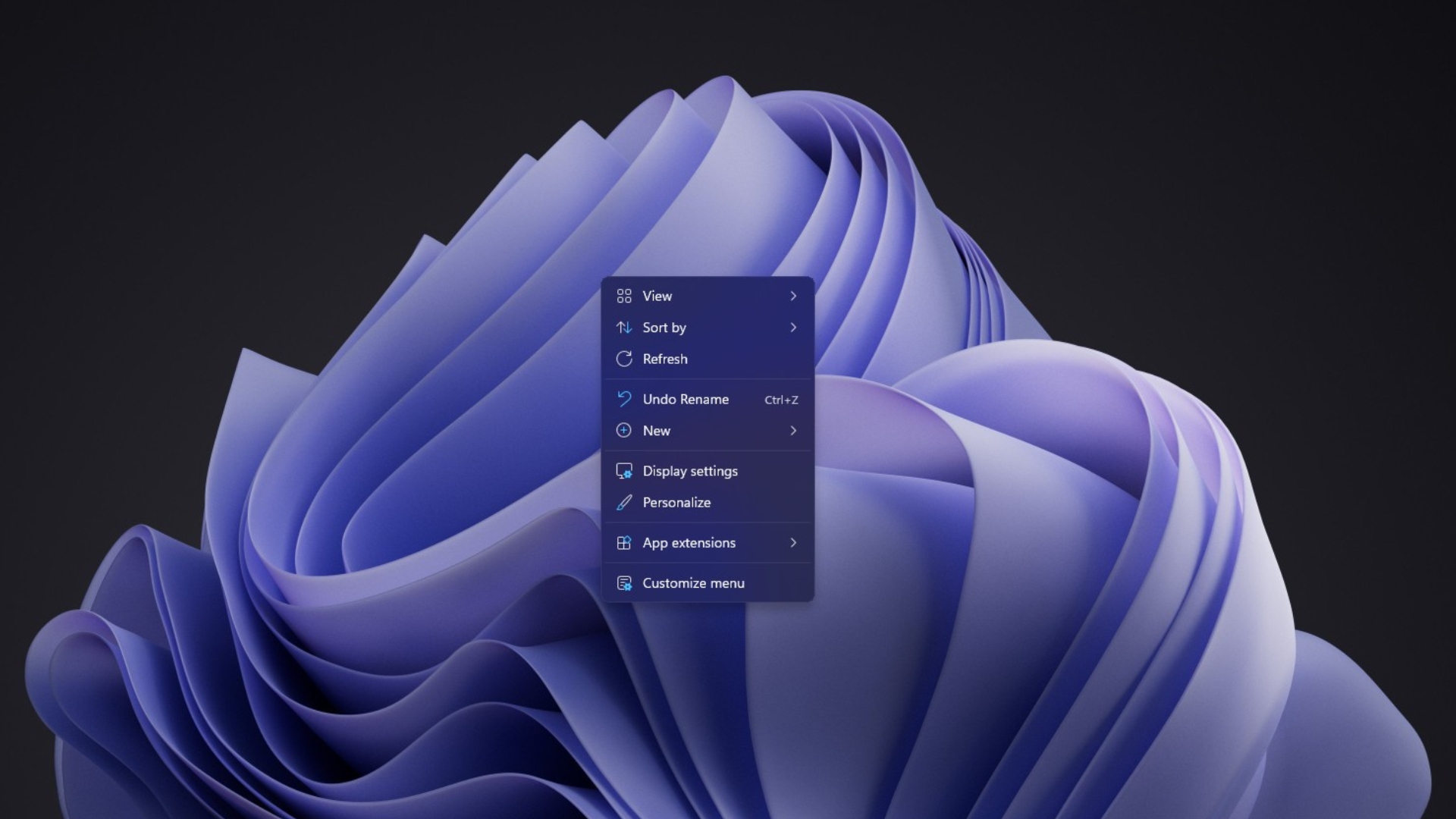
The redesigned menu includes a Customize menu button at the bottom. Selecting it opens Settings > Personalization > Context menu. MS states that no action is needed to use the default configuration. To open the older Windows 10-style menu, hold Shift while right-clicking the desktop or a file.
Testing Shows a Noticeable Improvement in Speed
An earlier test in August used an Insider build running in a low-powered virtual machine with 4GB of RAM. The latest test was conducted on a primary PC where applications such as Google’s Quick Share add their own right-click options.
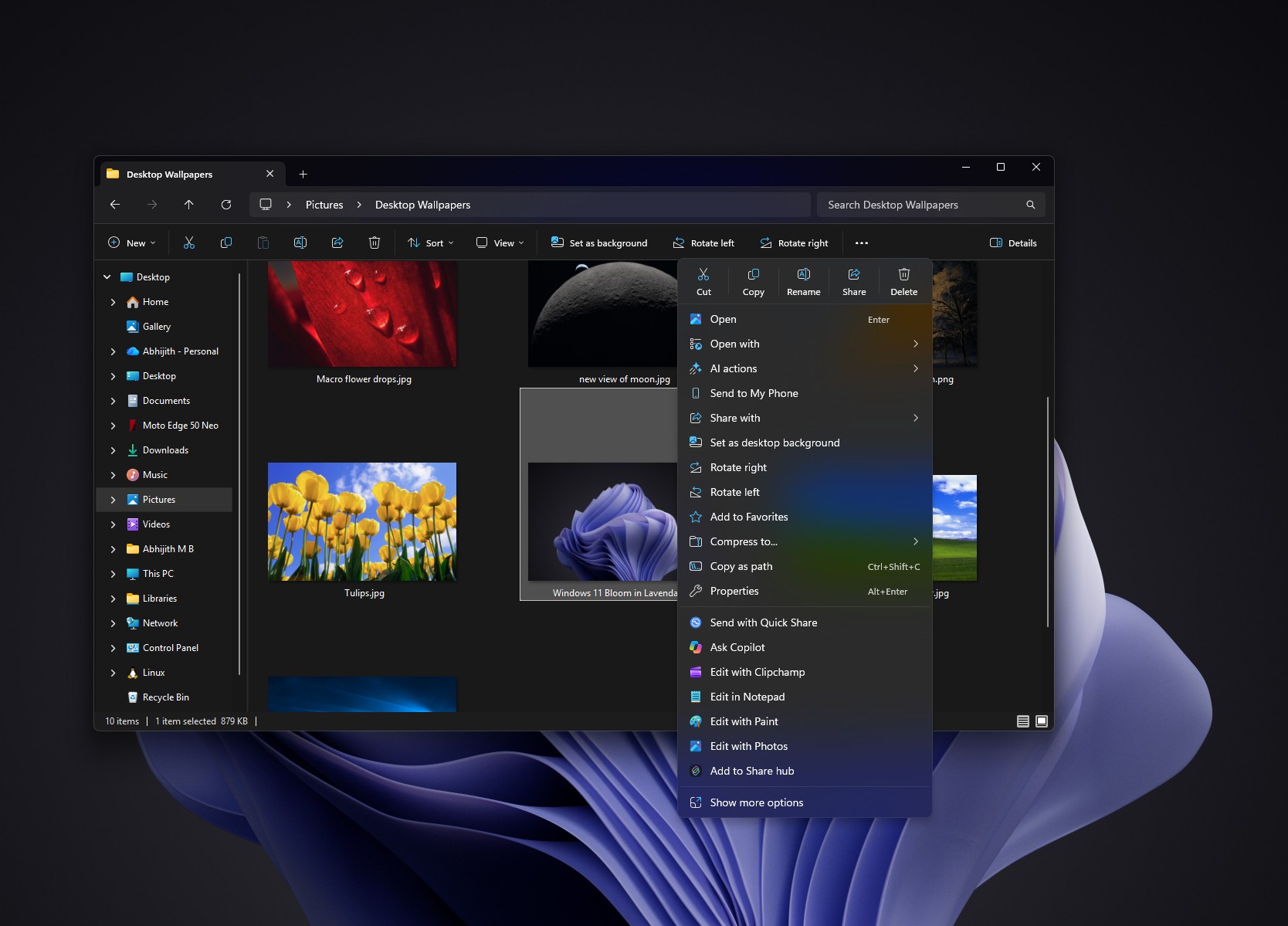
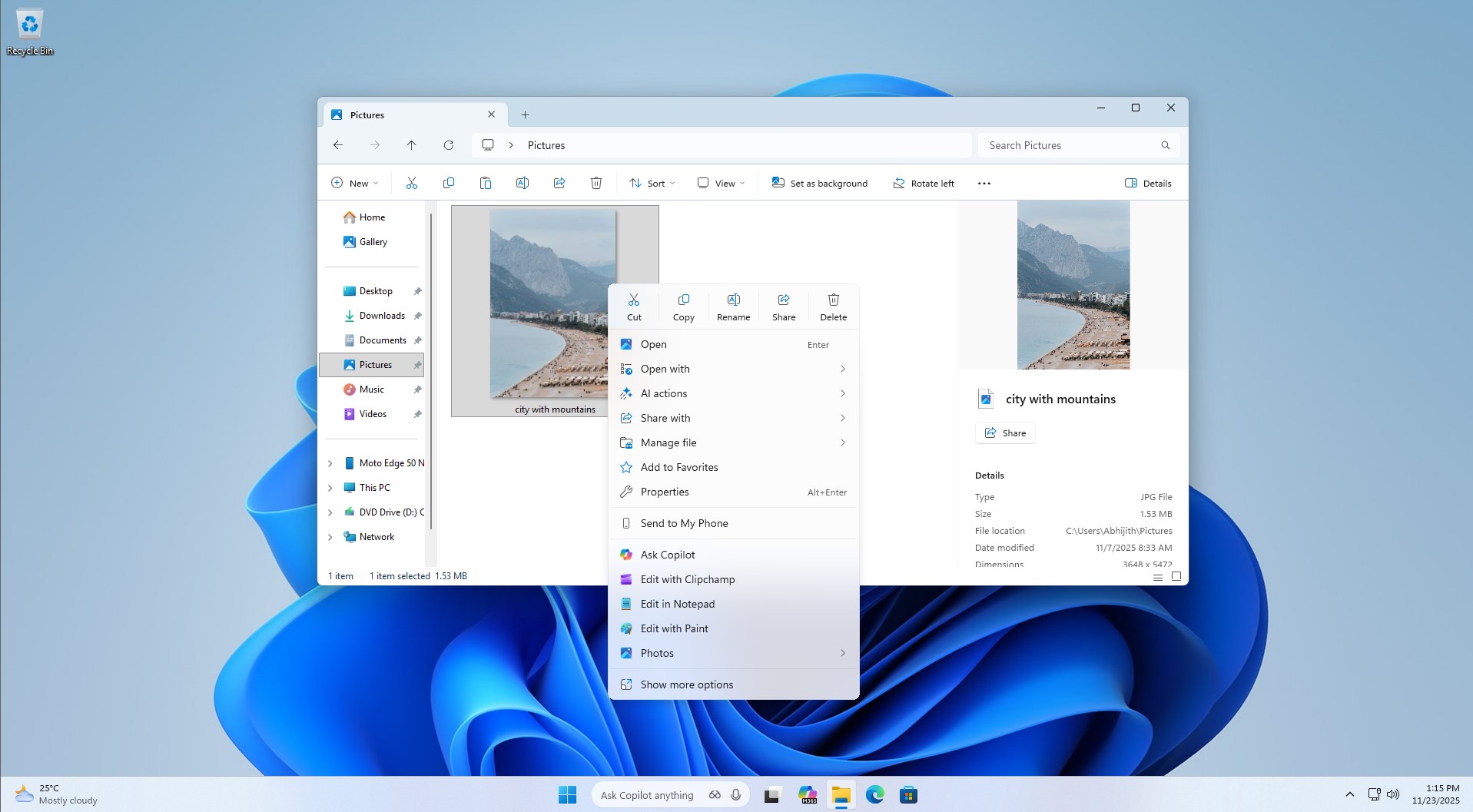
Before the update, right-clicking an image displayed 20 items beneath the Cut, Copy, Rename, Share, and Delete icons. These included AI actions, Send to My Phone, Share with, Rotate right, Rotate left, and Copy as path. The menu also contained seven app extensions: Send with Quick Share, Ask Copilot, Edit with Clipchamp, Edit in Notepad, Edit with Paint, Edit with Photos, and Add to Share hub. A Show more options entry appeared as well, even though most of these commands were rarely used.
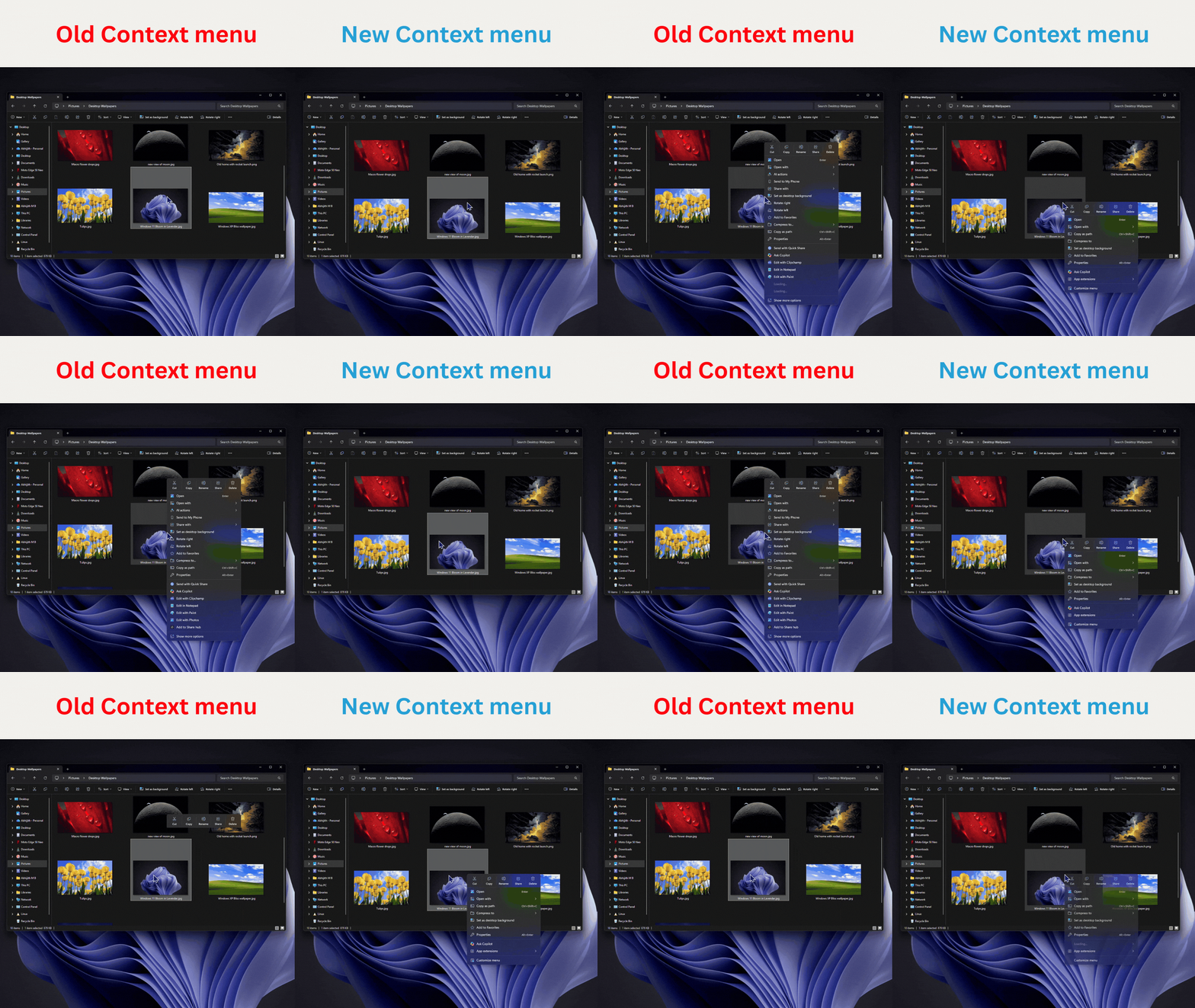
The older menu took approximately one to two seconds to finish loading. In a screen recording, it initially appeared with missing icons and disabled AI actions. The app extensions were the apparent cause of the unstable loading behavior.
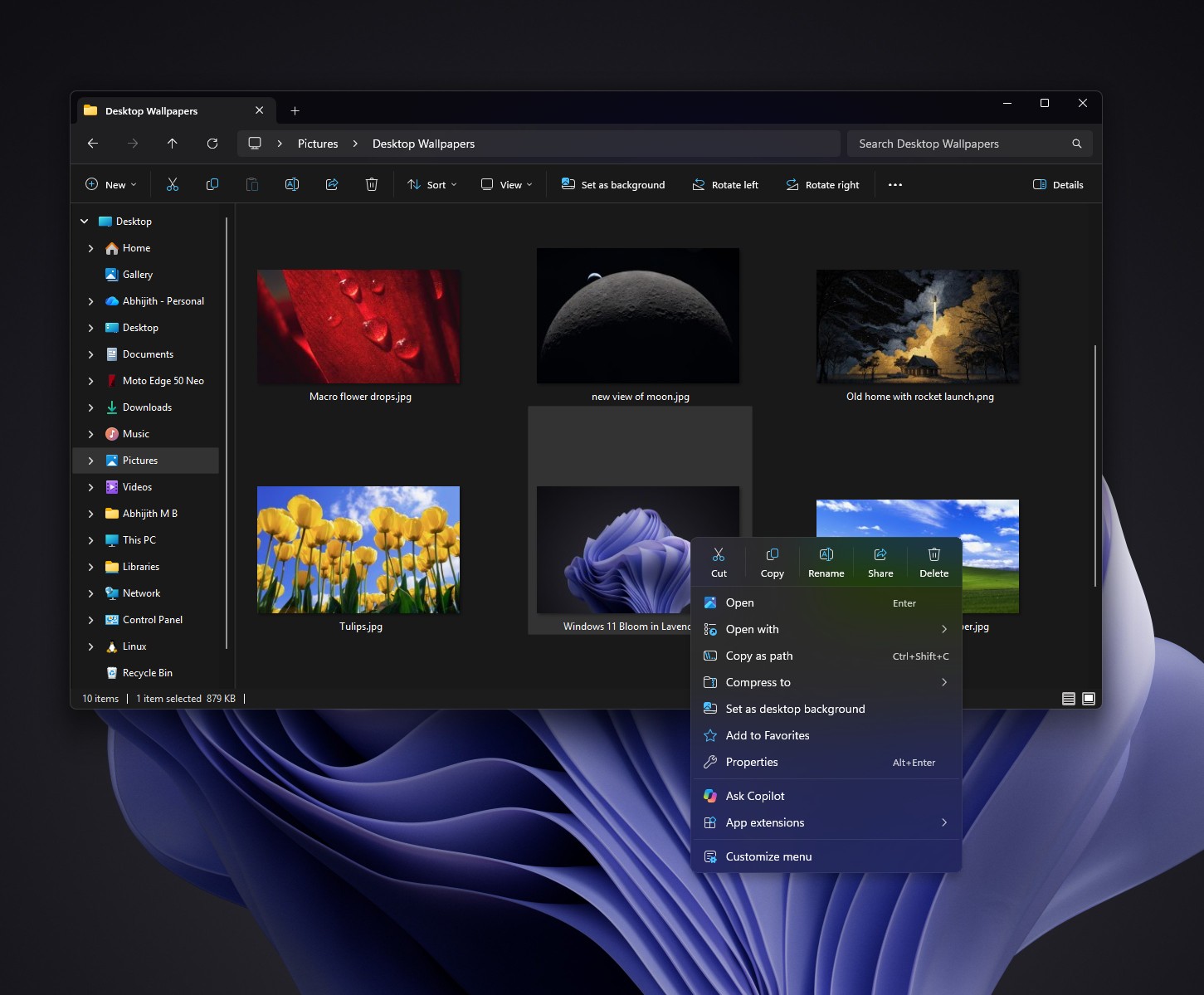
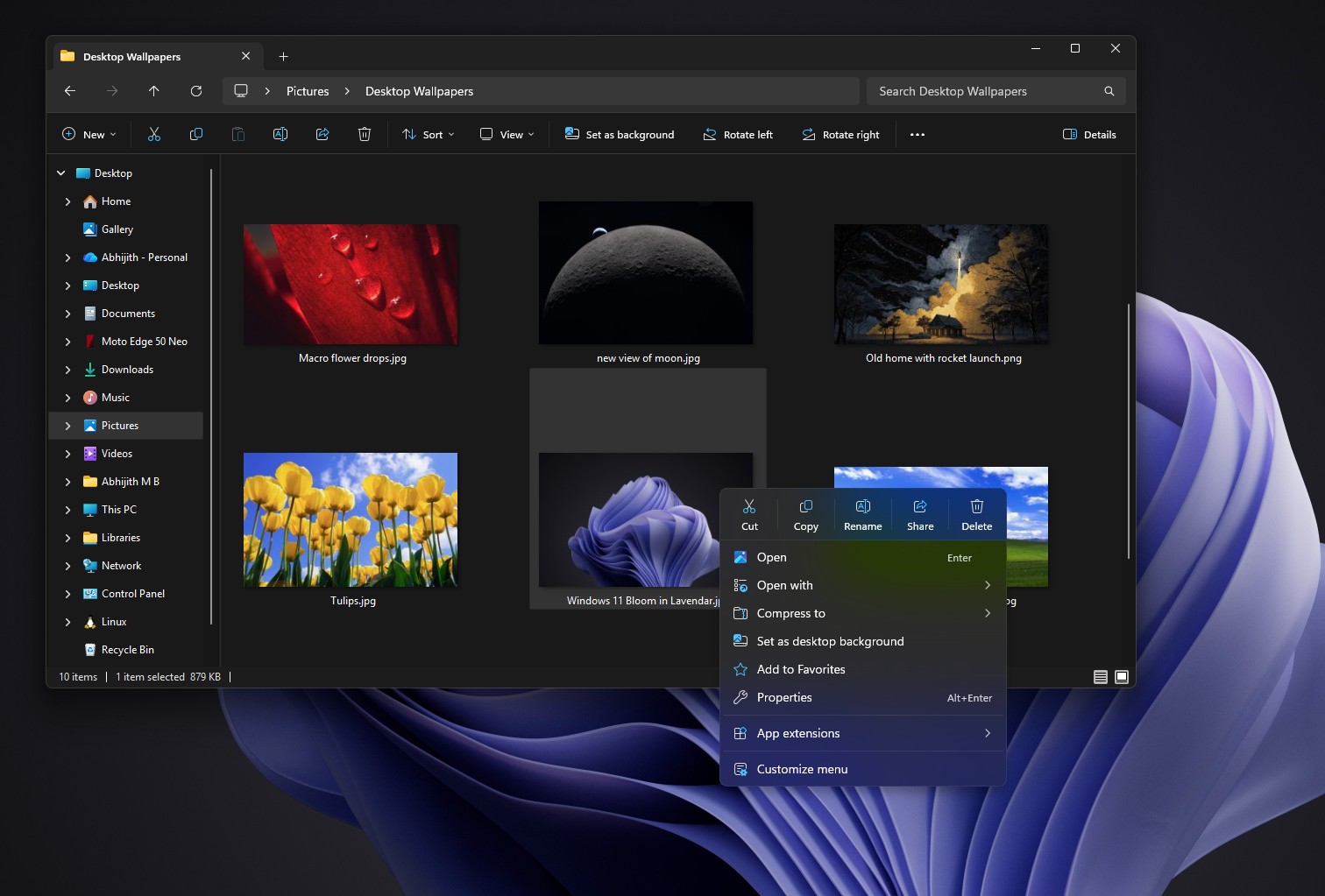
For the same image, the redesigned default menu contains only eight entries:
Open
Open with
Compress to
Set as desktop background
Add to Favorites
Properties
App extensions
Customize menu
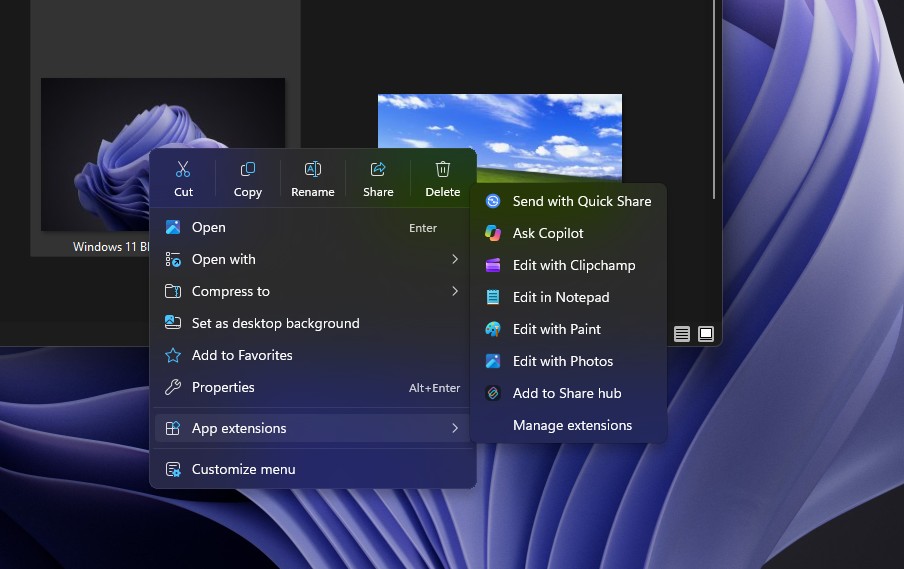
All seven app extensions have been moved into the App extensions submenu, which also includes a new Manage extensions option. AI actions, Send to My Phone, and Share with no longer appear in the default menu.
The performance improvement is immediate. In the test recording, the menu was fully loaded in the first frame. Because app extensions now load only when their submenu is opened, they no longer delay the main context menu.
Customization Options in the New Context Menu
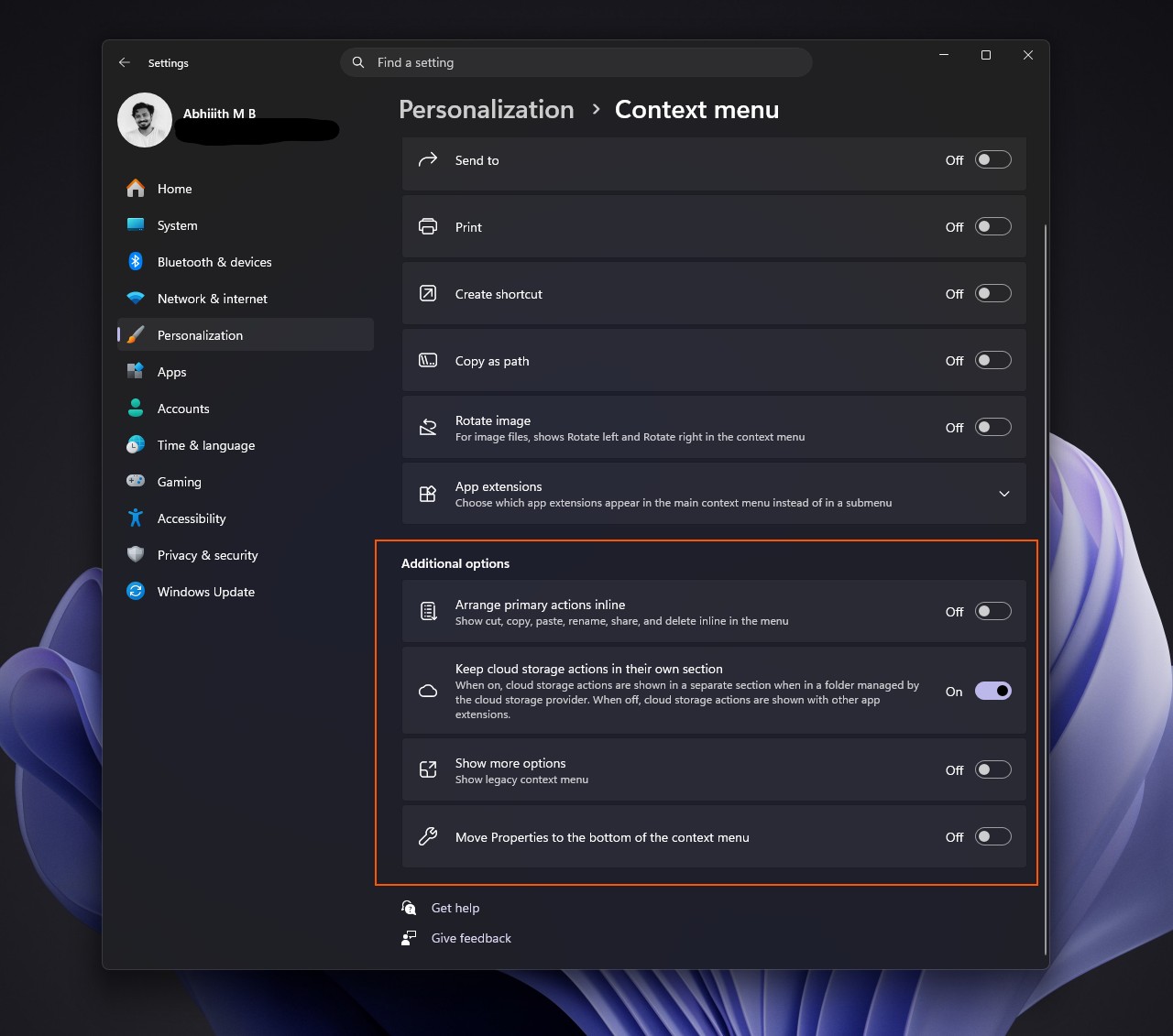
The page at Settings > Personalization > Context menu contains three sections. MS notes that only relevant items are displayed, depending on the type of file being selected.
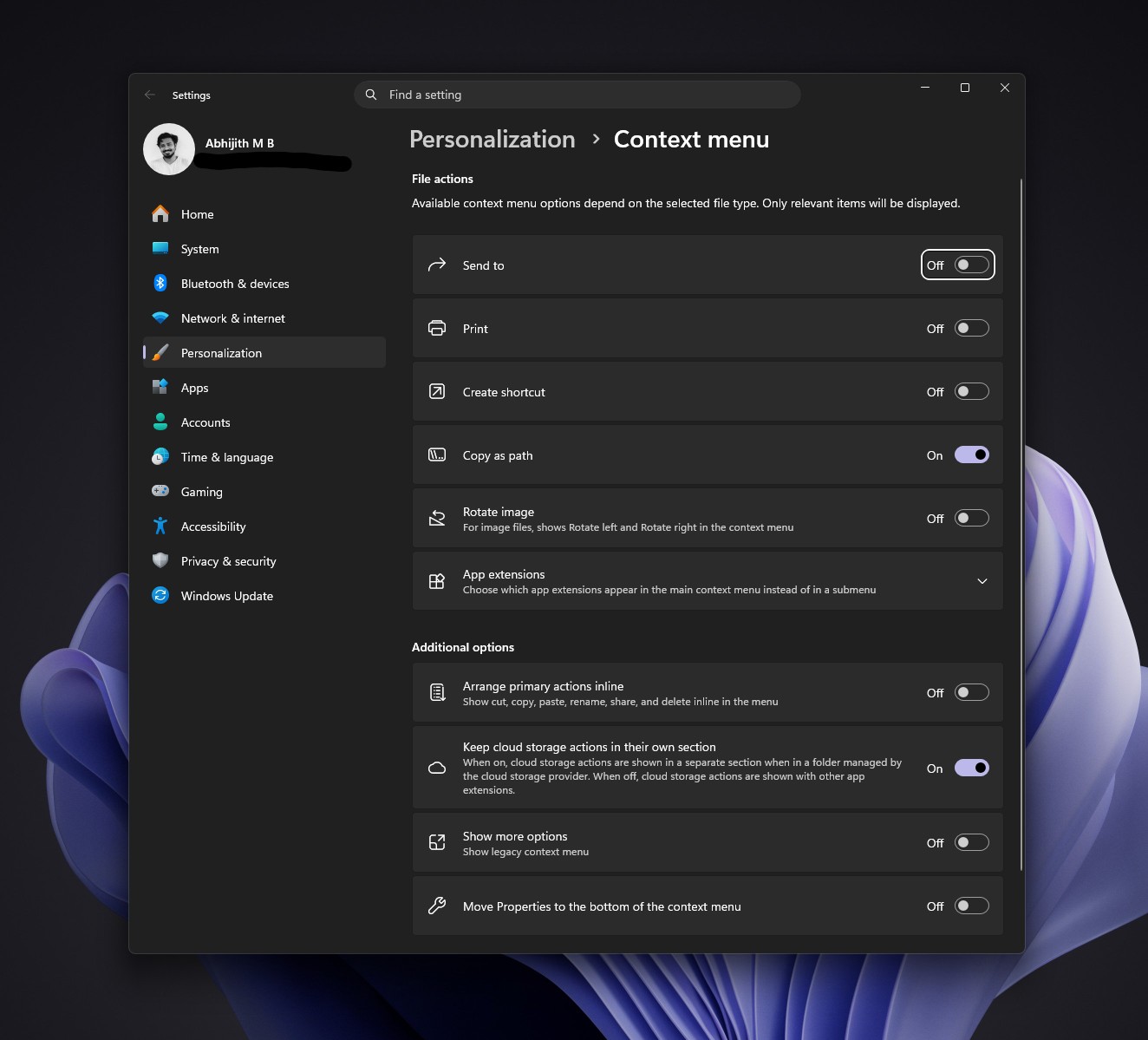
File Actions
App Extensions
MS describes this section as the place to choose which app extensions appear directly in the main context menu instead of inside a submenu. On the tested PC, toggles were available for Send with Quick Share, Copilot, MS Clipchamp, Notepad, OneDrive, Paint, Photos, Motorola’s Smart Connect, and Terminal. Send with Quick Share appeared incorrectly as Context menu in the interface, indicating a display bug. The available list varies according to the applications installed on each PC.
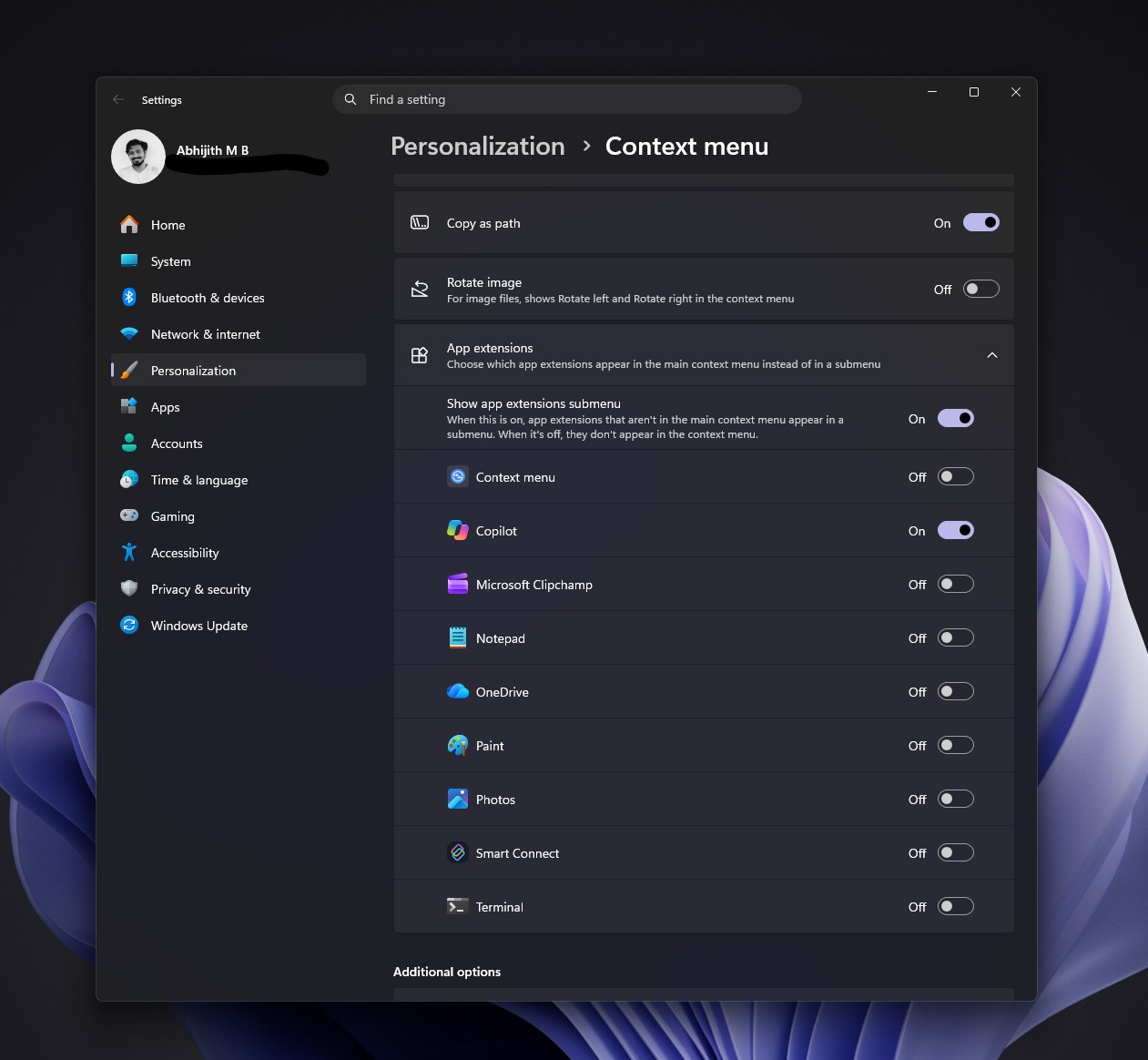
Enabling an extension moves it into the main context menu. Ask Copilot appeared above the App extensions submenu by default, while the remaining extensions stayed inside the submenu. However, it can be disabled directly from Settings.
The Show app extensions submenu setting offers additional control. When enabled, extensions that are excluded from the main menu remain available in the submenu. When disabled, those extensions do not appear anywhere in the context menu. Users who do not want Ask Copilot, Clipchamp, or other extensions can disable their individual toggles and turn off the submenu entirely.
Additional Options
Windows 11’s Right-Click Menu Is Finally More Personal
Combined with the faster File Explorer launch introduced in June, the new context menu addresses two major frustrations with right-clicking in Windows 11: loading delays and excessive clutter. Users can now remove items such as Copilot and Clipchamp without relying on registry modifications or third-party applications.
If the new menu has not yet reached a PC, it can be activated with ViVeTool. Users who skip the optional update are expected to receive the redesigned context menu through the mandatory November 2026 update.