Windows 11 Improves Bluetooth Headphone Audio While the Microphone Is Active
For years, activating a microphone on Windows caused Bluetooth headphones to produce audio resembling a low-quality phone call. MS is finally addressing the problem in Windows 11, although the improvement will initially be limited to compatible hardware and preview builds.
When users join a game or Discord call while listening to music through Bluetooth headphones, the sound can suddenly become muffled as soon as another application accesses the microphone.
This behavior does not necessarily indicate a problem with the headphones, nor is it related to the Windows feature that reduces the volume of other sounds during communication activity.
Windows PCs—including systems running Windows 10 and Windows 7—have traditionally switched Bluetooth headsets to a lower-quality audio mode when an application begins using the microphone. This generally occurs when the same headset handles both audio output and microphone input, causing all playback to sound noticeably worse while the microphone remains active.
Windows 11 Can Maintain Better Audio Quality During Microphone Use
A recent Windows 11 preview build allows compatible Bluetooth headsets to play full-range stereo audio at 48kHz while the microphone is active. As a result, stereo playback no longer needs to fall back to the lower-quality mode when users speak while listening to audio from another application.
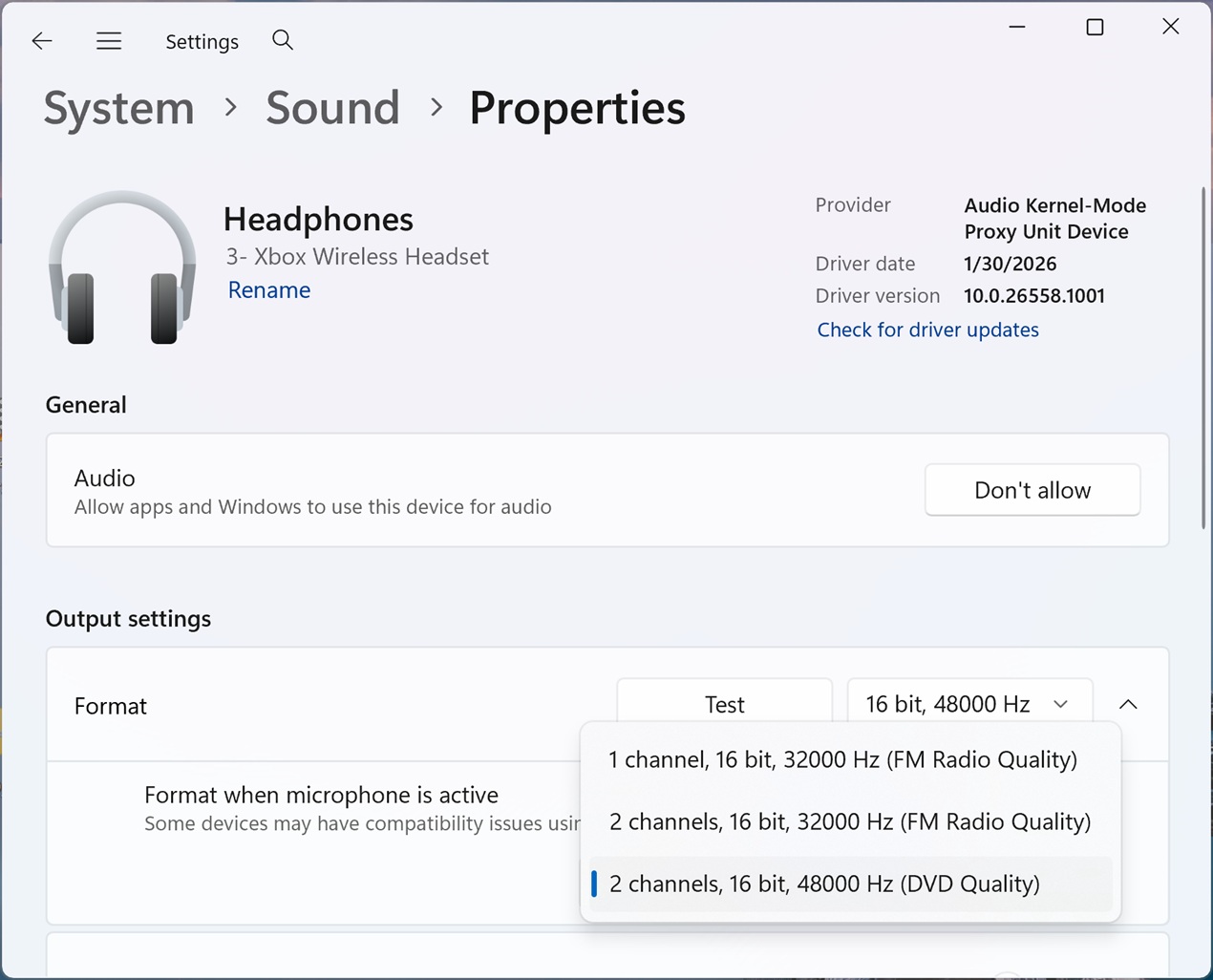
Windows has introduced a new “2 channels, 16 bit, 48000Hz” format option. When selected, it can provide full-range stereo fidelity during game chats, calls, voice typing, and other voice-chat activities that use the microphone.
The option is available under Settings > System > Sound > Output > Bluetooth device > Output settings > Format when microphone is active.
The feature is rolling out to Windows Insider testers first and will not initially appear in production builds. It is expected to reach supported PCs outside the Insider program by March 2027.
Why Bluetooth Headphones Sound Worse When the Microphone Is Used
When the microphone is inactive, Windows uses the Bluetooth profile known as Advanced Audio Distribution Profile (A2DP) for activities such as listening to Spotify, watching a movie in MS Edge, or playing a game.
However, once an application accesses the microphone, Windows switches from A2DP to the Hands-Free Profile (HFP). A2DP does not normally support simultaneous microphone input and audio playback, making the switch to HFP necessary.
In 2025, MS introduced Bluetooth audio improvements that included Super Wideband Stereo support on compatible devices, providing better playback quality while the microphone was active. However, those changes did not resolve the issue for every user.
Discord has also identified this behavior as a known Bluetooth limitation. Its support documentation explains that joining a call can force headphones to switch to the Bluetooth headset profile, which is required for low latency and microphone functionality on most Bluetooth headphones but delivers lower-quality audio.
The Improvement Requires Compatible Bluetooth Hardware
The new capability depends on both the headset and the PC. Users need:
- A headset that supports Bluetooth LE Audio and 48kHz playback
- A PC that supports Super Wideband Stereo
Headsets such as Samsung’s Galaxy Buds2 Pro, released in 2022, were among the earlier models to support Bluetooth LE Audio. Some users may therefore already own compatible headphones, although purchasing a recent model does not guarantee that the new 48kHz option will work with a particular PC.
To check for LE Audio support, open Settings > Bluetooth & devices > Devices and look for the “Use LE Audio when available” toggle.
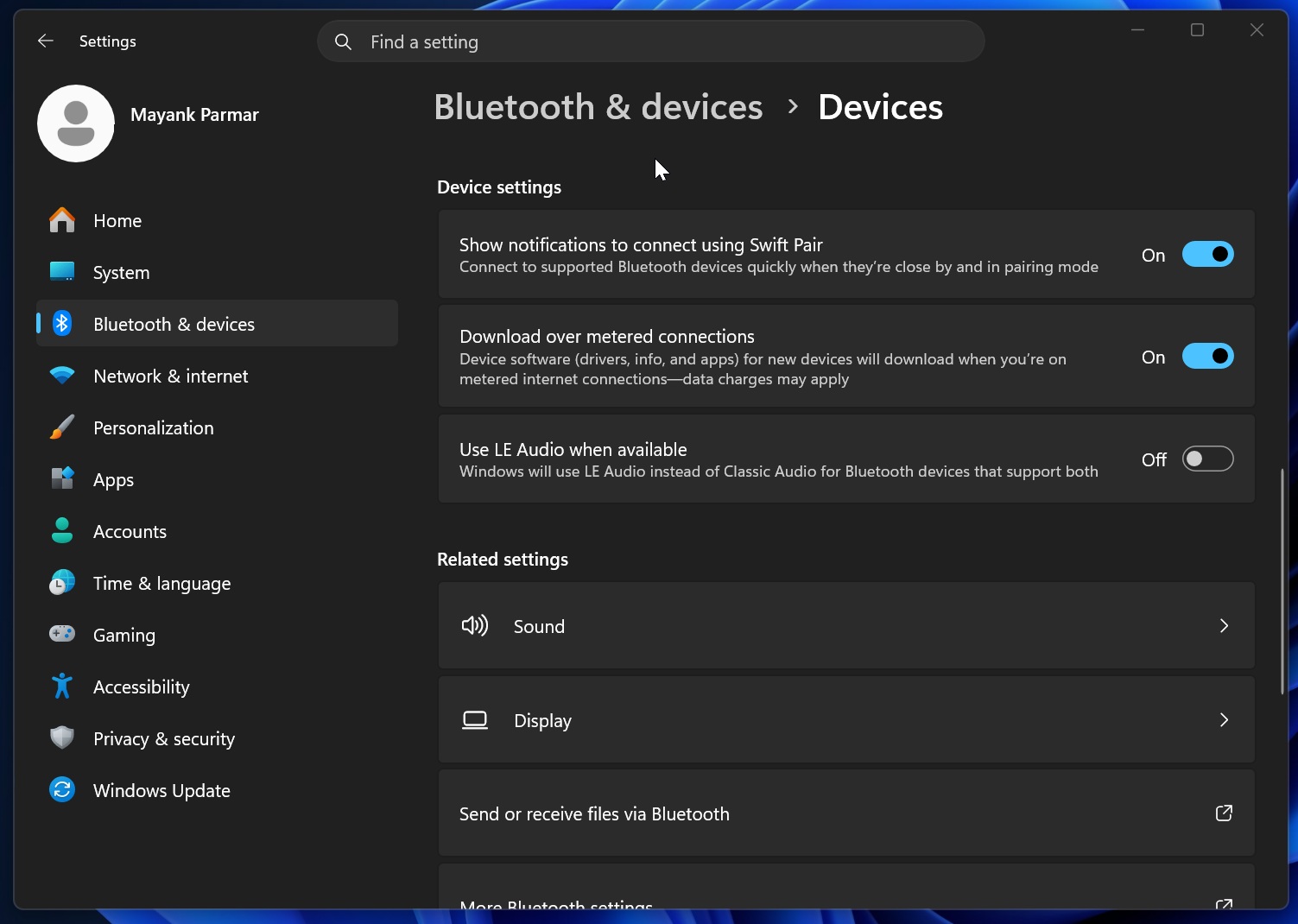
If the toggle is missing, the PC does not currently support LE Audio. However, the presence of the toggle alone does not confirm support for the new 48kHz format.
It remains unclear whether MS will eventually extend these improvements to all audio devices, as the underlying quality problem is not limited to recently released hardware.
Windows 11 Bluetooth Improvements Continue
Beyond interface refinements, 2026 brought significant Bluetooth stack and compatibility fixes to Windows 11. Comparable foundational updates had been largely absent since the early days of Windows 10.
MS confirmed that AirPods now connect 15% faster. The company also fixed an issue in which Quick Settings displayed an incorrect connection status after a Bluetooth headset was disconnected. That problem could lead to repeated clicks and unintentionally reconnect disconnected headphones, including AirPods.
Windows 11 also gained shared audio support, allowing two Bluetooth headsets to receive audio simultaneously when users watch a movie with a family member or friend.
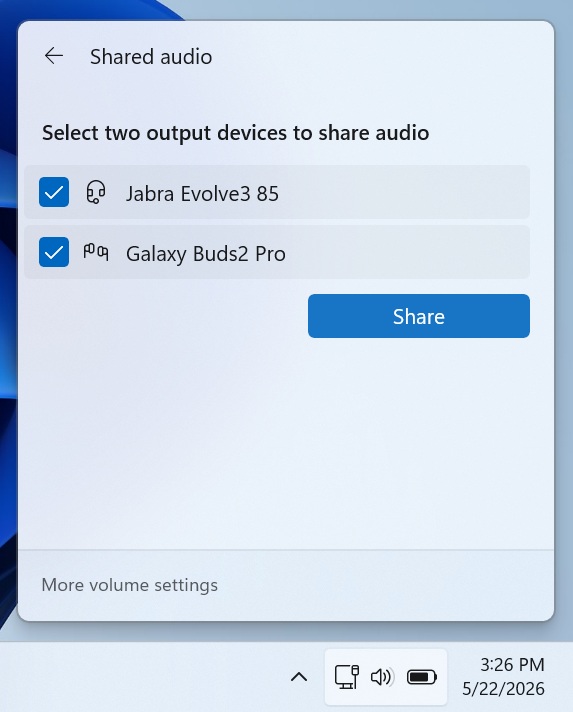
MS additionally addressed a volume synchronization problem. During calls, Windows did not always retain volume adjustments made through a headset’s physical buttons or touch controls, instead reverting to its previously saved volume level. This could cause sudden disruptions, but the issue was patched with the October 2026 Patch Tuesday update.